
Why Does My Computer Keep Freezing? A Friendly Guide to Getting It Moving Again
Quick Summary
A freezing computer doesn’t mean it’s broken — it usually just means it’s overwhelmed, tired, or trying to multitask like it’s 20 years younger. This guide explains, in simple terms, why computers freeze and what you can do to calm them down.
Imagine This Scenario
You sit down with your morning coffee, ready to check email.
You click your mouse…
Nothing.
You click harder…
Still nothing.
You click so hard you’re convinced the computer can feel your frustration.
Suddenly the screen jumps, freezes again, then pretends nothing happened.

Good news: You don’t need to understand computer science to fix a frozen computer.
1. Your Computer Might Be Running Too Many Programs
Summary: Too many open windows = computer panic.
Think of your computer like a person carrying grocery bags.
One bag? Fine.
Two bags? Still fine.
Ten bags? Something is going to drop.
Your computer works the same way.
Signs this is the problem:
Several programs open
Dozens of browser tabs
Video calling + email + games + updates
Quick Fix:
Close programs you’re not using.
Yes — even the tabs you saved from 2019.
“Need a hand? Your friends at FriendlyHelp are just a click away—book your appointment today!
2. Your Internet Might Just Be Slow (Not the Computer!)
Summary: Sometimes it's the Wi-Fi, not the machine.
Slow internet can make it look like the computer is freezing when it’s actually waiting for a website to load.
Try this:
Restart the Wi-Fi router
Move closer to the router
Ask others in the home to pause video streaming
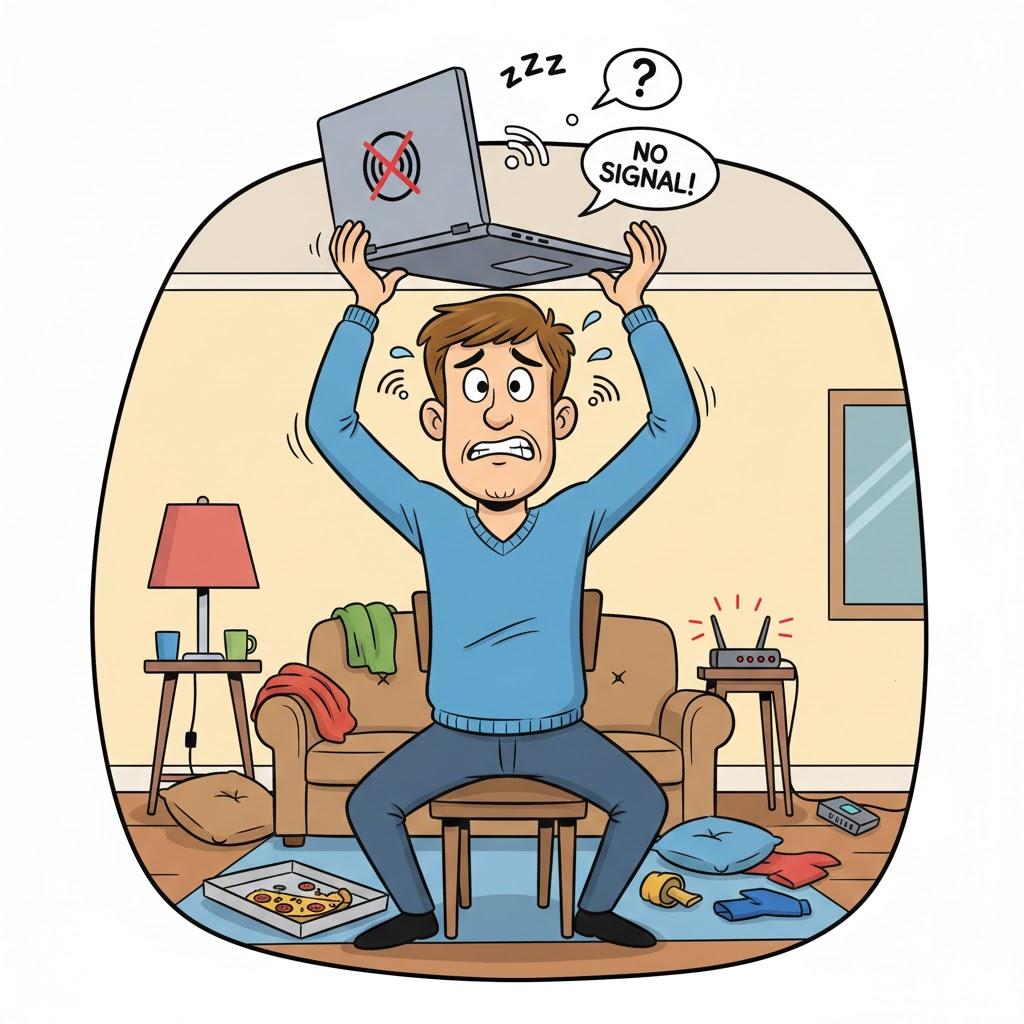
3. Your Computer Might Need a Restart
Summary: Restarting fixes more problems than you’d think.
A restart clears temporary clutter.
It’s like giving your computer a nap.
If your computer hasn’t been restarted in 2–3 days, it may act dramatic.
Quick Fix:
Restart → Don’t just close the lid.
4. Your Storage Might Be Full
Summary: A full computer = a slow computer.
When the hard drive is almost full, the computer can’t breathe.
Common storage hogs:
Photos
Videos
Downloaded files
Old software
Duplicate documents
Quick Fix:
Delete what you don’t need.
Empty the Recycle Bin.
Move big files to a USB or cloud storage.
“Need a hand? Your friends at FriendlyHelp are just a click away—book your appointment today!
5. Your Computer Might Be Updating
Summary: Updates make computers slow temporarily.
Ever had your computer freeze and then say:
“Do not turn off your computer”?
Yep — that’s an update.

During updates, freezing is normal.
Give it a few minutes.
6. Your Computer Might Be Getting Old
Summary: Sometimes it’s simply out of energy.
If your computer is over 6–8 years old, it may struggle with modern websites and apps.
Signs of age:
Long startup time
Random freezing
Slow loading
Strange noises
A FriendlyHelp tech can also evaluate it and suggest whether upgrades are worth it.
“Need a hand? Your friends at FriendlyHelp are just a click away—book your appointment today!
Quick Fix Checklist
Try these in order:
Close extra programs
Restart the computer
Restart the Wi-Fi
Clear unused files
Check for updates
Consider memory upgrades or a newer device
FAQ: Frozen Computer Problems
Q1: Does freezing mean my computer has a virus?
Not usually. Most freezing is caused by too many tasks or low storage.
Q2: Should I unplug the computer when it freezes?
No — try holding the power button for 10 seconds instead.
Q3: How often should I restart?
At least every 2–3 days.
The 5 Golden Rules to Prevent Freezing
Restart regularly.
Keep fewer tabs open.
Delete old files.
Update when needed.
If all else fails, ask FriendlyHelp.
A freezing computer is usually asking for relief—not replacement.
Too many open tasks, low storage, or skipped restarts can overwhelm even a perfectly healthy machine. A few simple habits can keep things running smoothly most of the time. And when freezing becomes frequent or frustrating, FriendlyHelp is here to help you figure out what’s slowing things down and get your computer moving again—calmly, clearly, and without pressure.
