
5 Quick Fixes for Wi-Fi That Keeps Cutting Out
Quick Summary
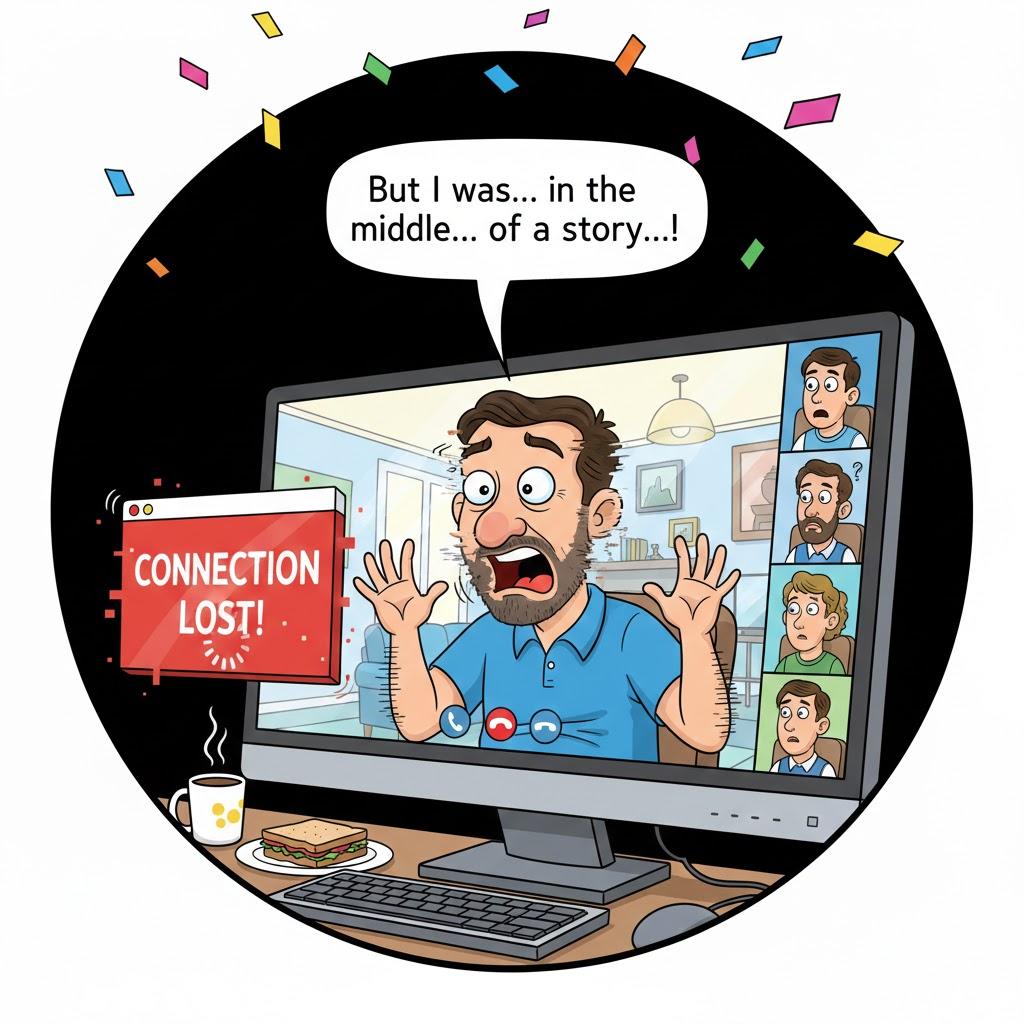
Your video freezes mid-call. The page won’t load. Netflix spins forever. Before blaming your internet provider, try these five easy fixes that solve most Wi-Fi dropouts—no screwdriver required!
Imagine This Scenario
You’re chatting with family on Zoom when the screen freezes. Everyone else keeps talking while you’re stuck mid-blink. Frustrating, right? The good news: most Wi-Fi hiccups are quick fixes.
1. Restart Your Router (the Magic Button)
Summary: It sounds too simple, but it works.
Unplug the router from power, wait 30 seconds, and plug it back in. This clears network “traffic jams” and refreshes the signal.
💡 Tip: Mark the router plug with tape so you know which one it is.
2. Move the Router to a Better Spot
Summary: Walls and metal block signals.
Keep your router in an open area, not behind a TV or inside a cabinet.
Ideal height: waist-level on a small table.
If your house is large, consider a Wi-Fi extender like TP-Link or Netgear to reach distant rooms.
“Need a hand? Your friends at FriendlyHelp are just a click away—book your appointment today!
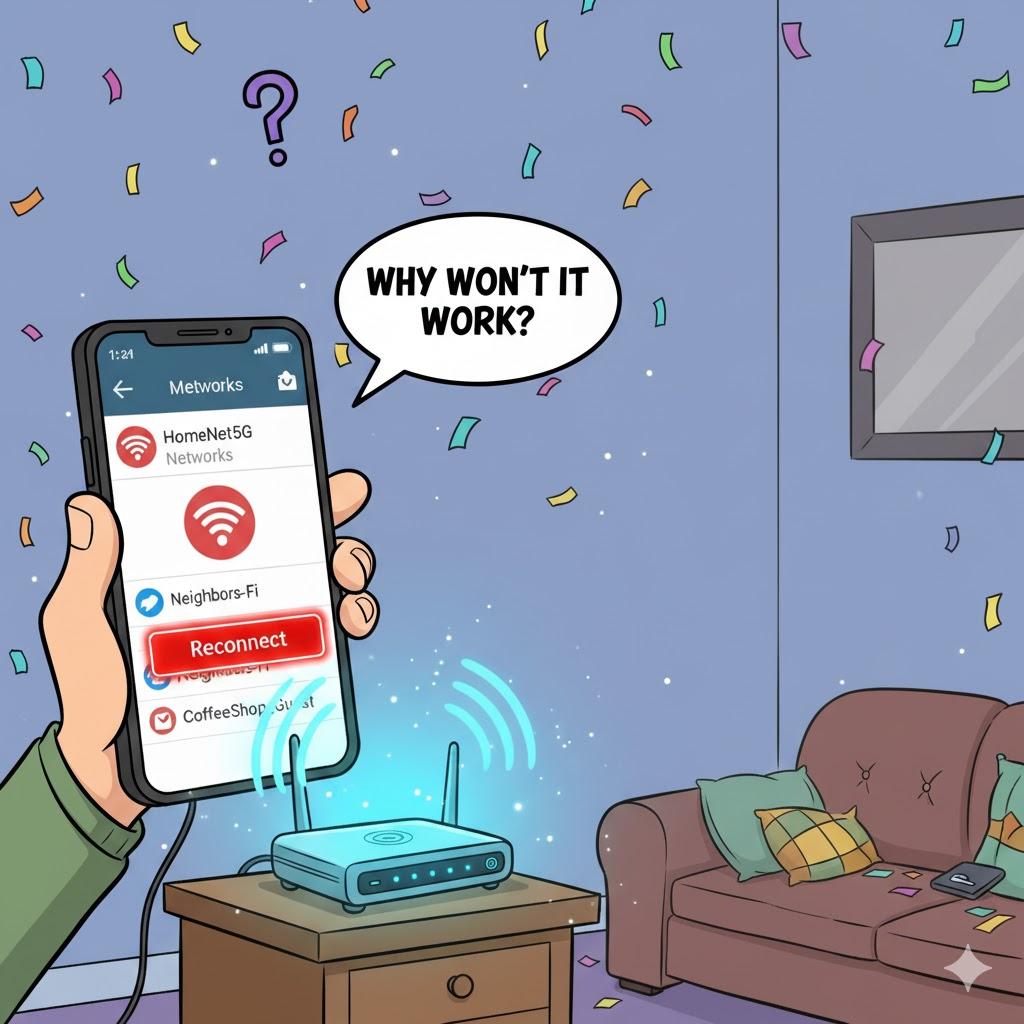
3. Forget and Reconnect Your Wi-Fi
Summary: A quick reset can solve hidden connection bugs.
On your device:
Open Settings → Wi-Fi
Tap your network name → Forget
Reconnect and enter your password again.
“Need a hand? Your friends at FriendlyHelp are just a click away—book your appointment today!
4. Check for Interference
Summary: Other gadgets can “steal” your signal.
Cordless phones, baby monitors, or even microwaves can interrupt Wi-Fi.
Try moving the router away from them or switching channels (your internet provider can guide you).
5. Update or Replace Old Equipment
Summary: Sometimes, the router’s just tired.
Routers older than five years may struggle with newer speeds.
Call your provider—they often replace them for free or offer upgrades.
Also, check for firmware updates in your router’s control panel (usually at 192.168.1.1 in your browser).
FAQ: Fixing Weak Wi-Fi
Q1: Should I reset my router often?
Once every few weeks keeps it fresh.
Q2: Will too many devices slow it down?
Yes—smart TVs, phones, tablets, and cameras all share bandwidth. Disconnect anything unused.
Q3: Is public Wi-Fi safe?
Avoid entering passwords or banking details on public networks.
The 5 Golden Rules for Reliable Wi-Fi 🌐
Restart before you panic.
Keep the router visible.
Use fewer devices at once.
Replace outdated equipment.
Ask your provider for help—don’t just suffer!

Most Wi-Fi problems aren’t caused by “bad internet”—they’re usually small signal or setup issues that build up over time. A quick restart, better router placement, or reconnecting a device often restores a stable connection faster than expected. And when Wi-Fi problems keep interrupting calls, shows, or daily routines, FriendlyHelp is here to walk you through the fix patiently and clearly—so your connection works when you need it most.
