Whitelabel Workspace Set Up
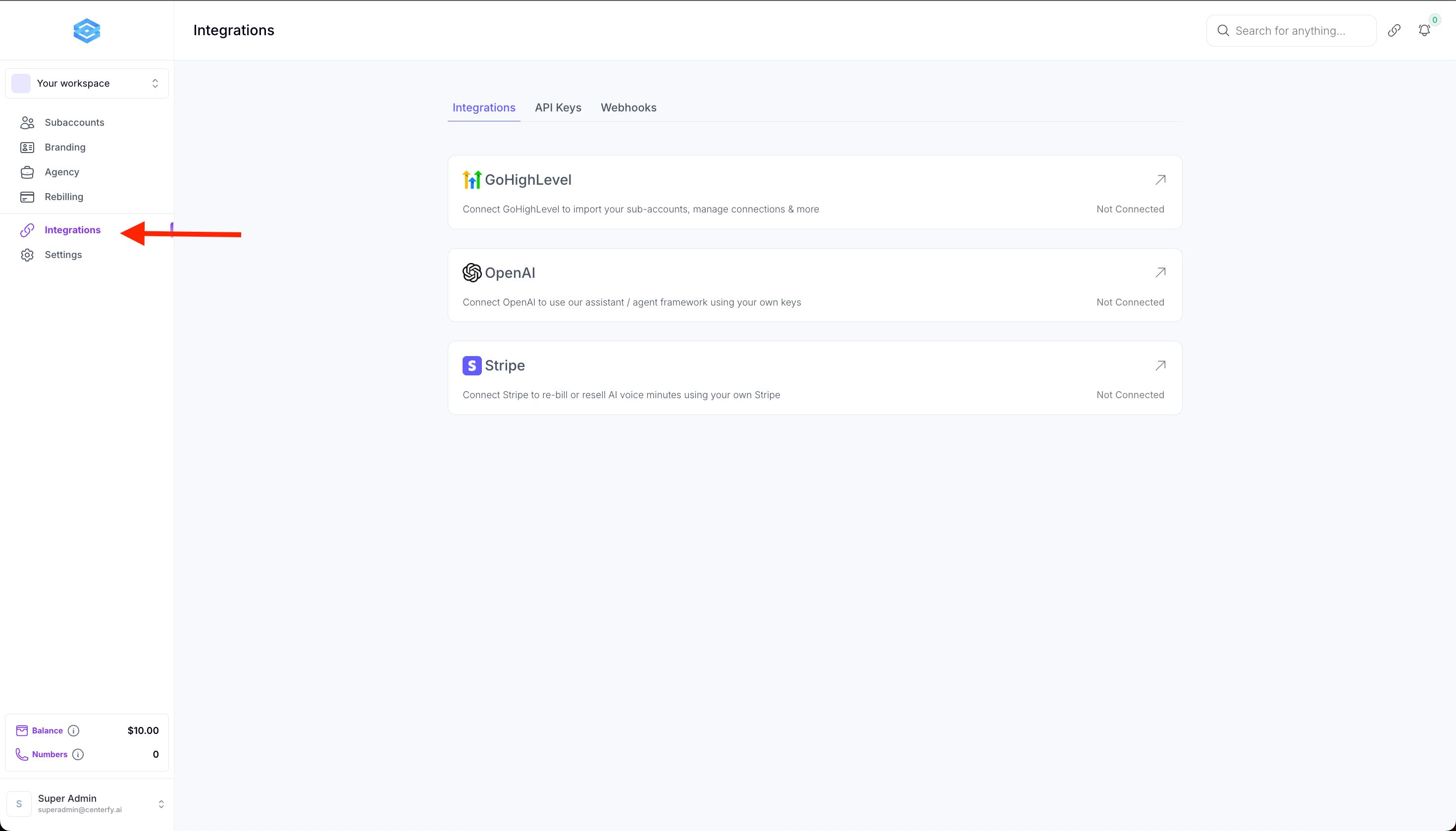
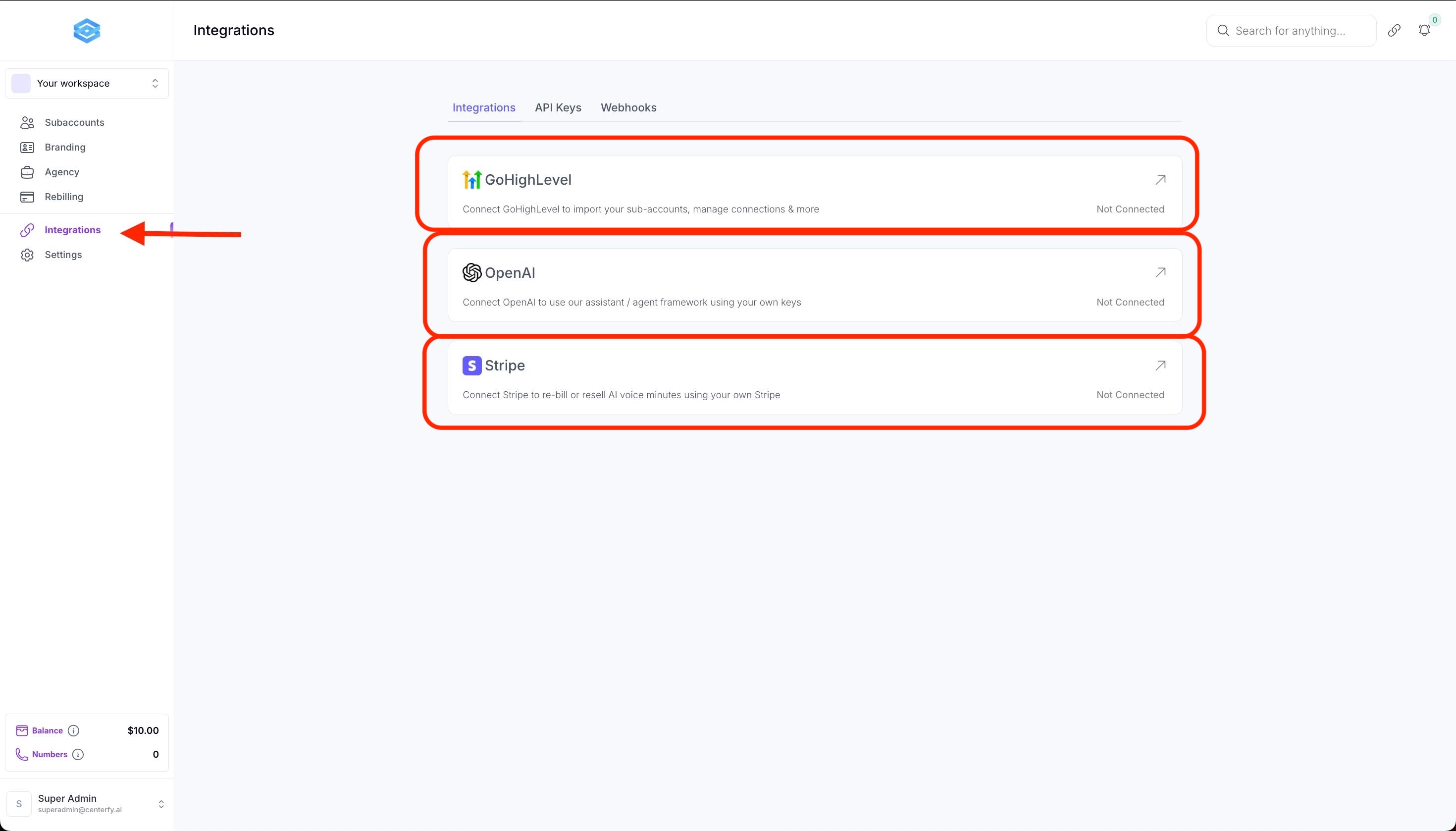
Step 1: Click Integrations to connect your GHL Agency
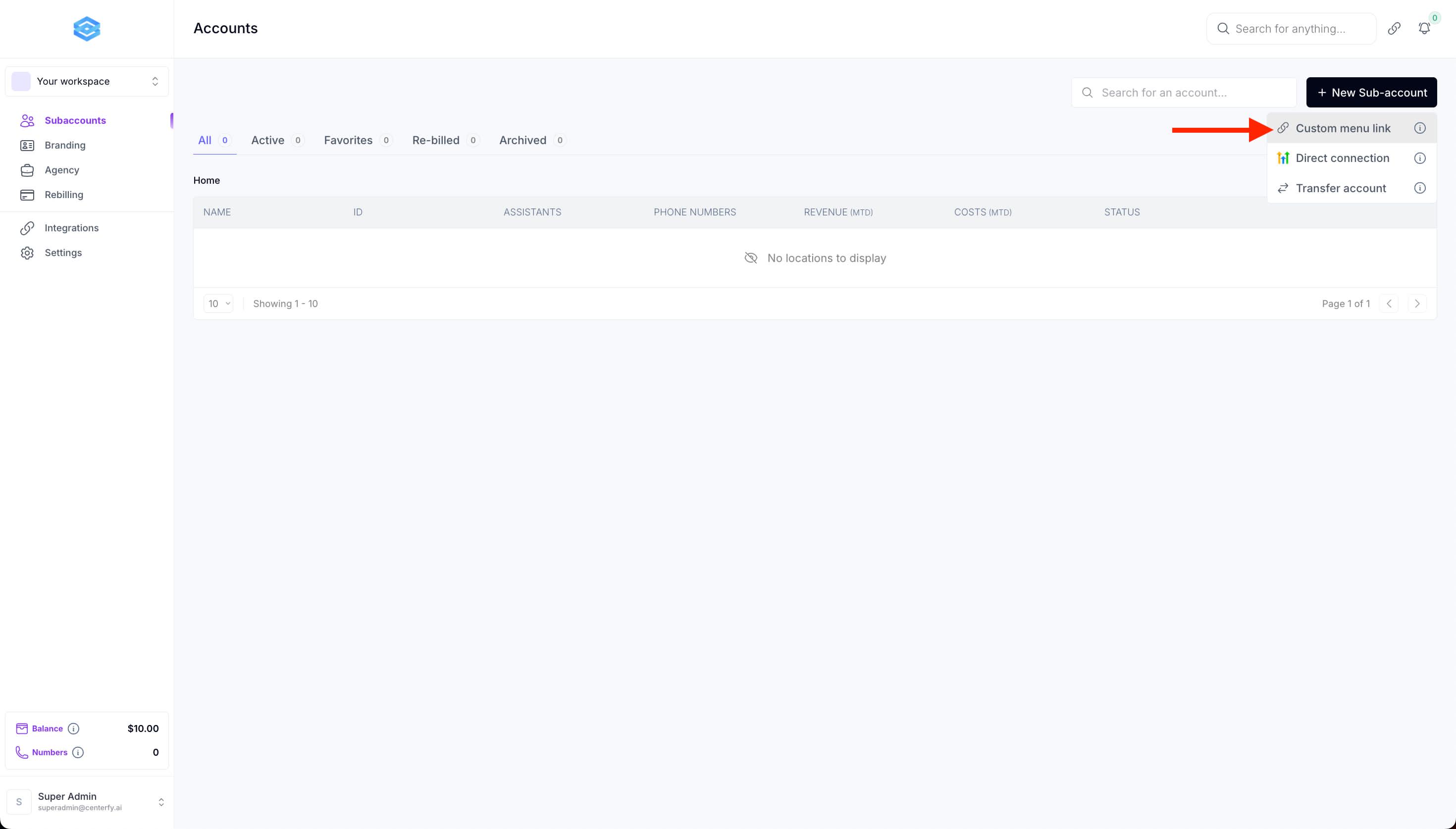
Step 2: Go to Subaccounts then click on "+New Sub-account" then Custom Menu Link.
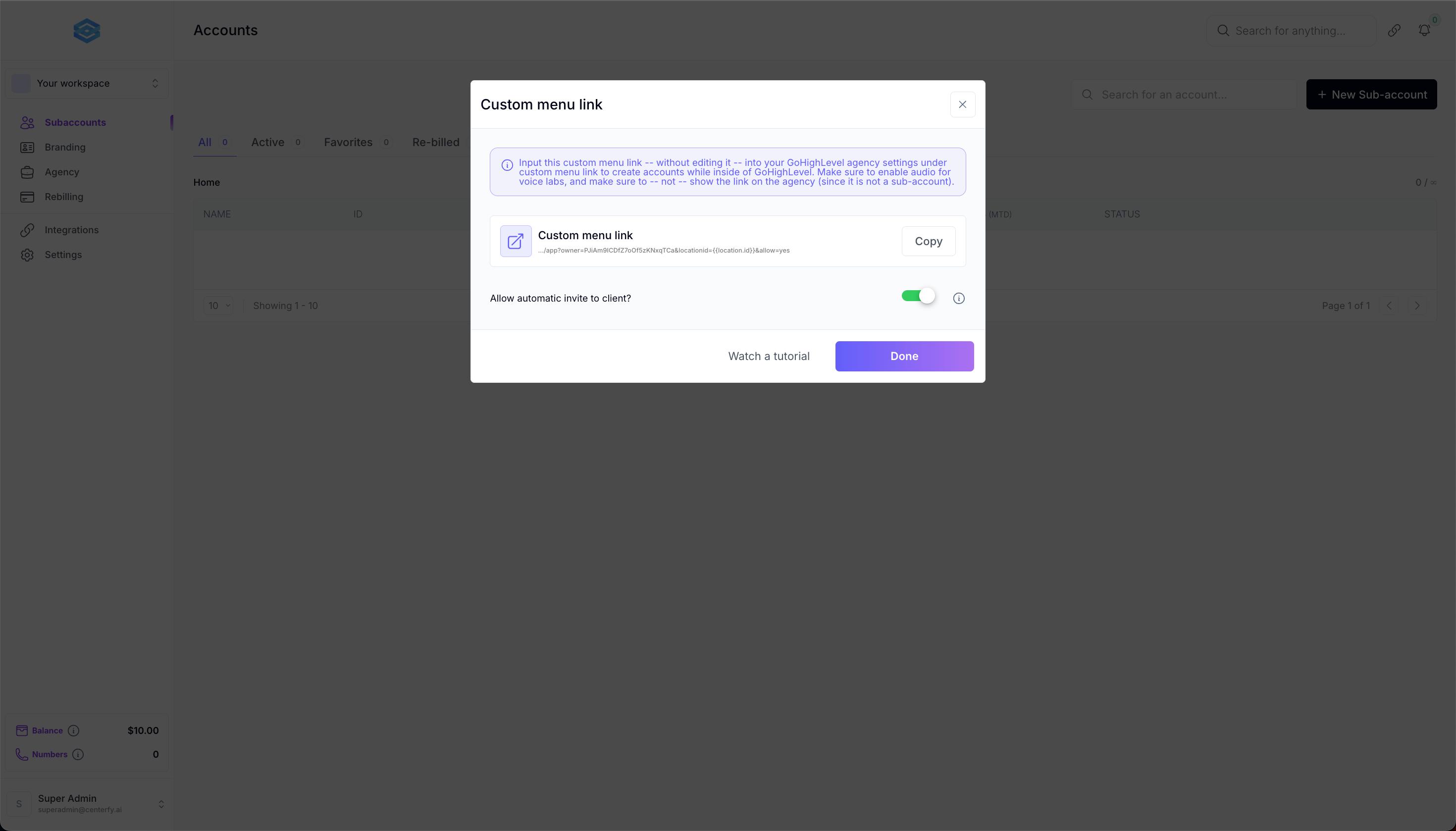
This pop up will appear.
1. Make sure to turn on "allow automatic invite to client"
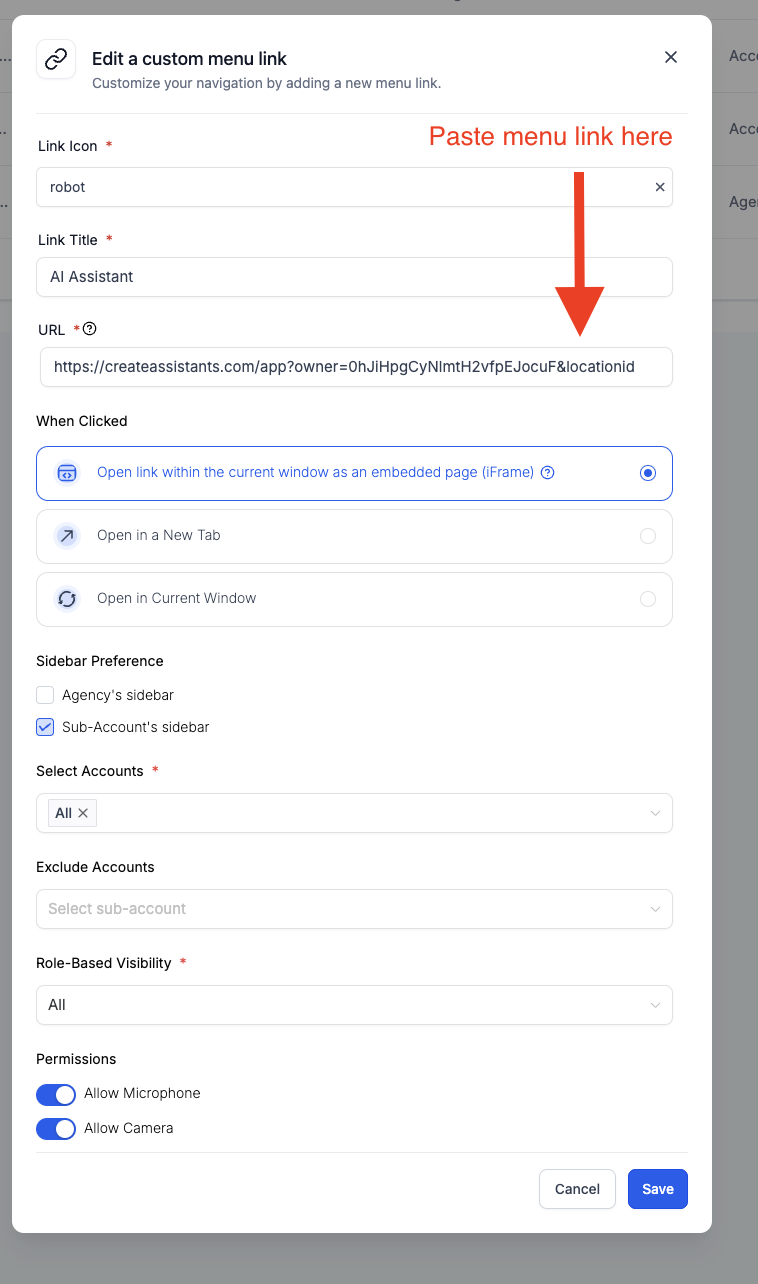
2. Copy Custom menu link
Inside your GHL Agency > settings > “Custom Menu Links section”
Click “create new”
After Connecting your GHL Agency Account
>> Connect API key from OpenAI Account
(Livechat AI won't work without this, openai account needs to have balance/credit available)
Then Connect Stripe Account
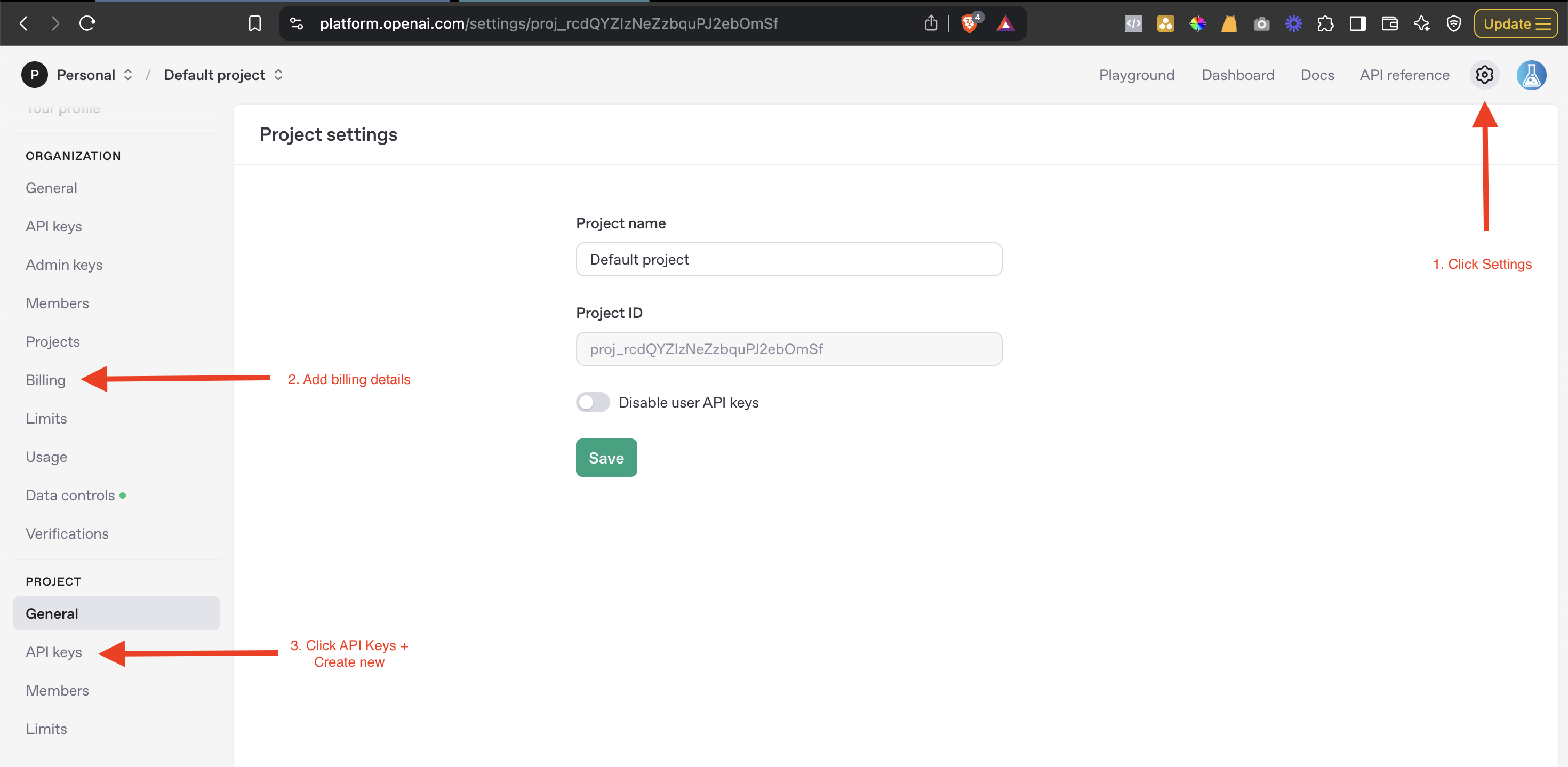
How to Connect OpenAI API:
1. Visit: https://auth.openai.com/log-in
2. Create an API key and insert into the workspace.
Adding Subaccount to your Whitelabel WorkSpace
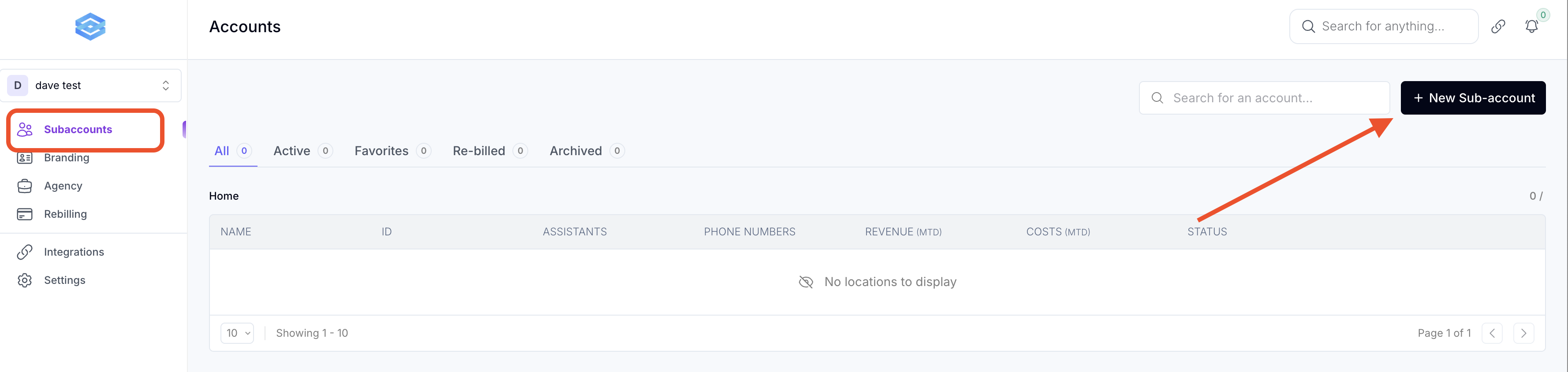
1. Log in to your Workspace
2. Go to the Subaccounts
3. If you can't find the subaccount on the list, click on + New Sub-account
Select "Direct Connection"
(Make sure that you are logged into the right HighLevel Account - Your Agency)
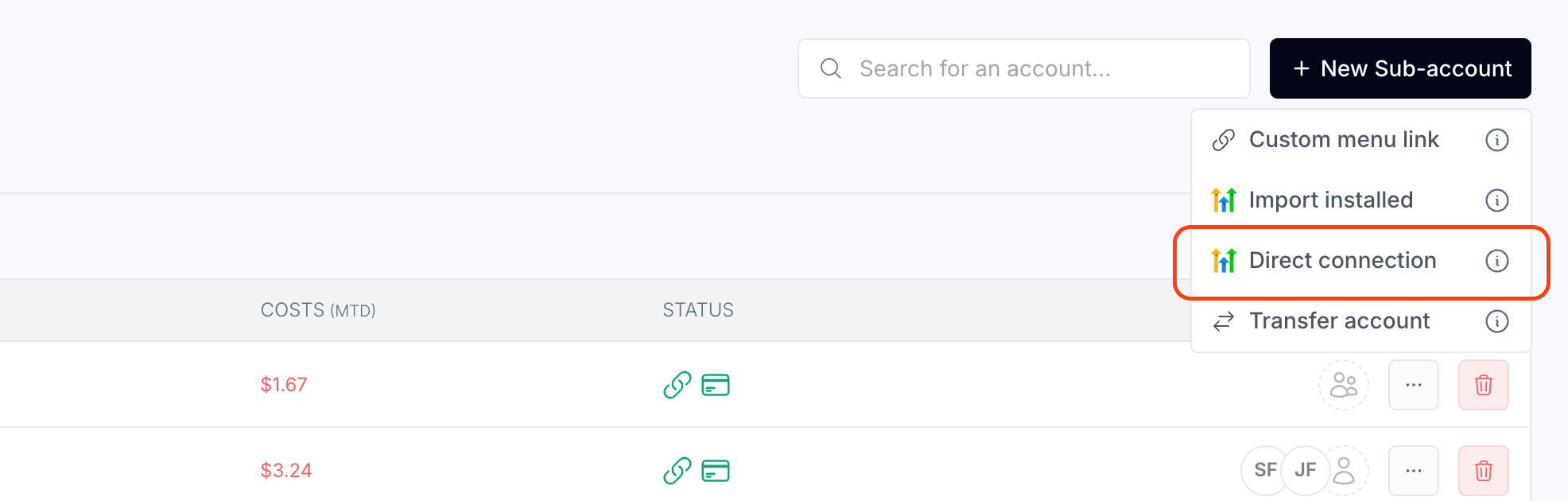
You will see "Install Confirmation" page, just click NEXT at the bottom.
Then look for the subaccount.
Make sure that the agency at the top is Your Agency Name.
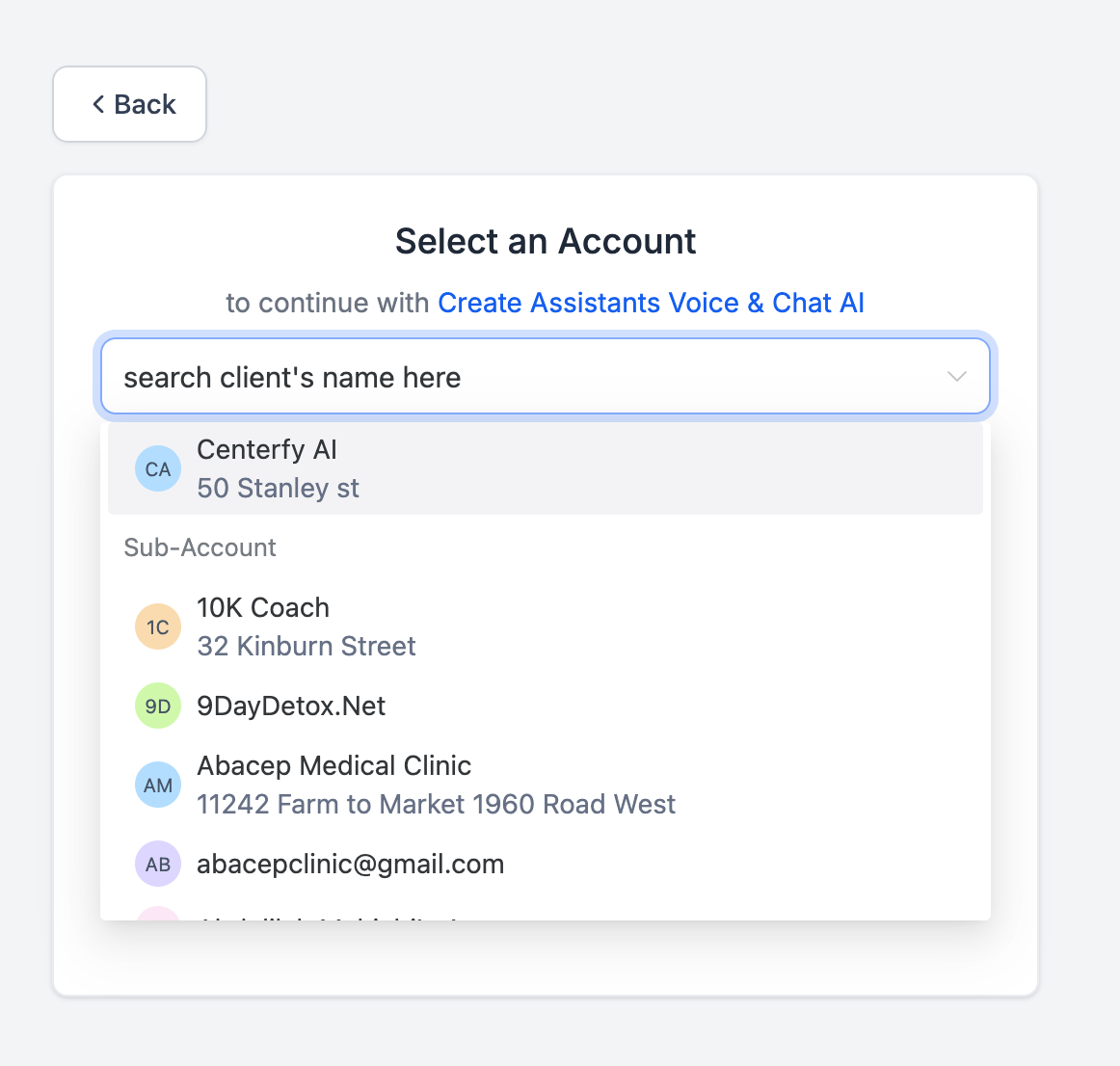
Once you have the subaccount added in the workspace.
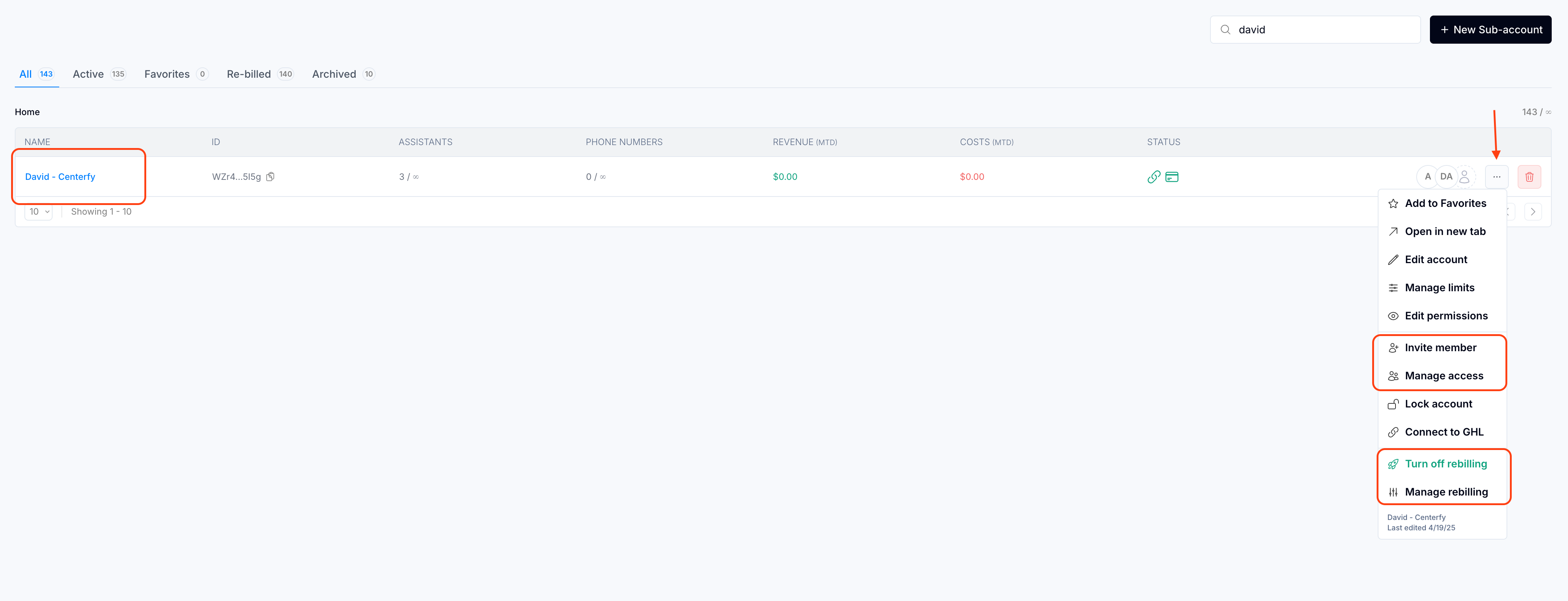
1. Click on 3-dots
2. Make sure to add the email address by either inviting member or manage access
3. Turn on rebilling and make sure to set pricing to your desired amount.