





Guiding Businesses Toward Growth and Success
Unlock Your Business’s Full Potential with Tailored Solutions
I understand the unique needs of Go High Level (GHL) agencies. With first-hand experience—having started, grown, and successfully sold my own agency—I know what it takes to build and sustain growth in a competitive market. I’m committed to helping GHL agencies like yours leverage the platform’s powerful tools, optimise workflows, and scale your offerings. From boosting client acquisition to strengthening retention, I provide custom solutions that drive growth at every stage. No cookie-cutter solutions or generic snapshots here—every strategy is custom-designed to elevate your agency’s growth and position you as a leader in your market.
How I Help GHL Agencies Succeed
Strategic Consulting for GHL Agencies
Running a successful GHL agency requires more than technical know-how; it requires a strategic roadmap that aligns with your agency’s goals and the needs of your clients. I work closely with GHL agency owners to develop a tailored strategy that enhances service offerings, drives growth, and ensures long-term scalability. Whether you’re refining your agency’s business model, optimising pricing structures, or expanding into new markets, my consulting services are designed to give you a competitive edge. Together, we’ll identify opportunities unique to your agency, allowing you to deliver more value to your clients and establish a robust foundation for growth.


Growth and Scaling Support
One of the biggest challenges for GHL agencies is utilising the platform to its full potential. With extensive experience in Go High Level, I provide customised optimisation services that help agencies streamline workflows, automate client management, and improve overall efficiency. From tailored automation sequences and CRM configurations to lead management systems, I ensure that each aspect of your GHL setup is customized to meet your agency’s needs. This includes:

Enhanced Automation Workflows
Custom automation sequences designed to nurture leads, engage clients, and streamline operations, freeing up time and resources to focus on growth.

Lead and Client Management Systems
Efficient, customised systems to organise, track, and follow up with leads, ensuring you stay connected with every client and prospect.

CRM Customisation
I tailor the GHL CRM to support your agency’s unique processes, from client onboarding to long-term retention.

Performance Reporting
Metrics tracking and reporting setups that provide you with actionable insights, helping you refine services and demonstrate value to clients.
Digital Transformation and AI Integration
Staying competitive means adapting to the latest technologies. I help businesses leverage AI and digital tools to improve efficiency and decision-making. Every recommendation and integration is carefully chosen to suit your business’s specific needs


Custom Business Solutions
Because every business is unique, so are my solutions. From creating a strategic growth plan to developing training programs, each piece of guidance I provide is designed to address your business’s unique opportunities and challenges.
Why Choose Steven Tann?

No Pre-Built Solutions—Only Tailored Expertise
I’m committed to providing solutions that reflect the uniqueness of your business. You won’t find pre-packaged or generic snapshots here—just strategies that are purpose-built for your specific goals.
A Results-Driven, Collaborative Approach
I work as your partner, listening closely to your vision and creating clear, actionable plans that align with your business. Each step of our journey is focused on achieving meaningful outcomes tailored to your needs.

Commitment to Long-Term Success
I prioritise sustainable strategies that empower you and your team to continue thriving long after our engagement. My goal is to equip you with tools, confidence, and a roadmap for lasting growth.
Areas of Expertise

Agency Strategy & Growth Consulting
Customised plans to refine your agency’s positioning, enhance your service offerings, and achieve sustainable growth.
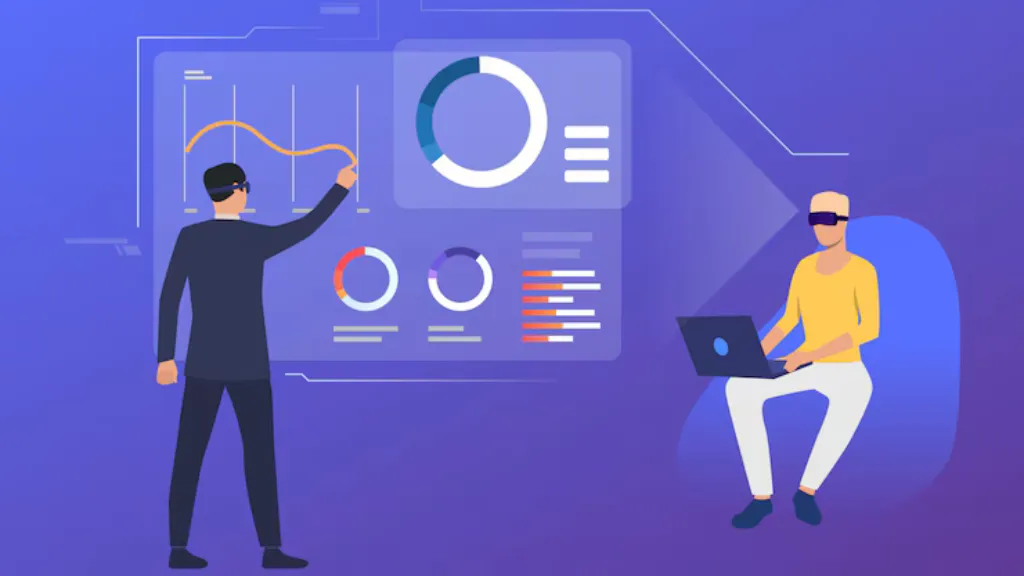
High Level (GHL) Optimisation
Tailored workflows, automation setups, CRM enhancements, and optimised lead management to support your agency’s unique needs.
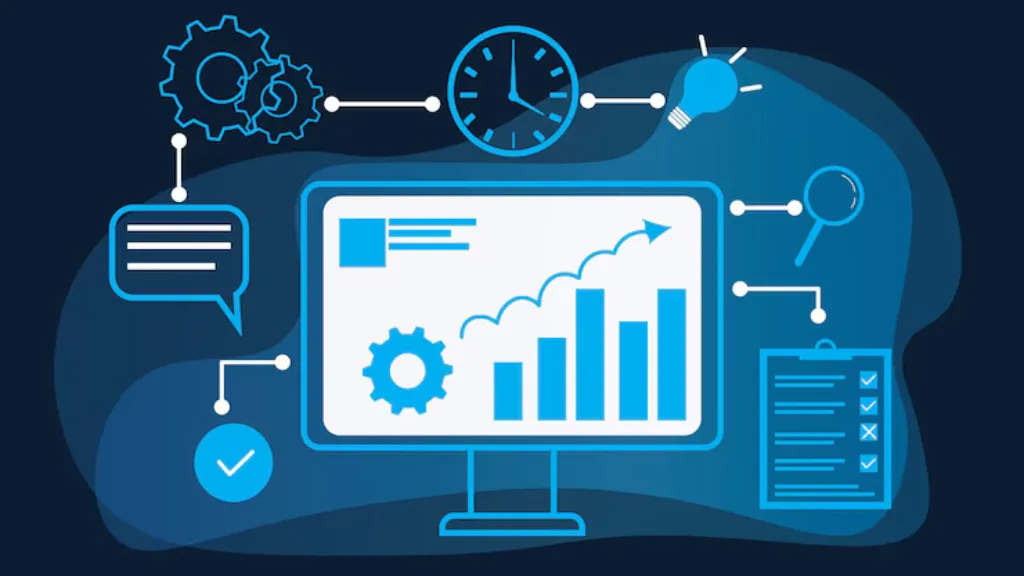
Process Optimisation
Streamlining processes to maximise efficiency and reduce costs, with a plan designed specifically for your operations.
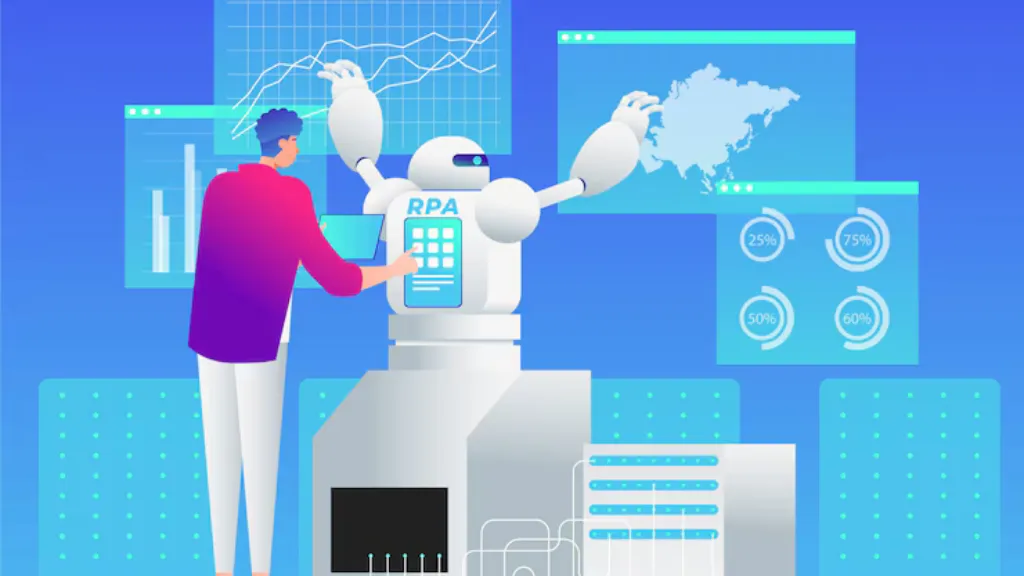
Digital Transformation & AI Integration
Leveraging AI tools and digital solutions in ways that support your agency’s services, efficiency, and client experience.

Team Training & Development
Empowering your team with the skills and confidence to maximise GHL’s potential and deliver exceptional client value.
Ready to Take Your
GHL Agency to the Next Level?
I’m here to guide you through every step of your business journey, offering strategies and support that fit your unique vision and challenges. If you’re ready to move past obstacles and unlock real growth, let’s connect. I prioritise sustainable strategies that empower you and your team to continue thriving long after our engagement. My goal is to equip you with tools, confidence, and a roadmap for lasting growth.
Book A Call
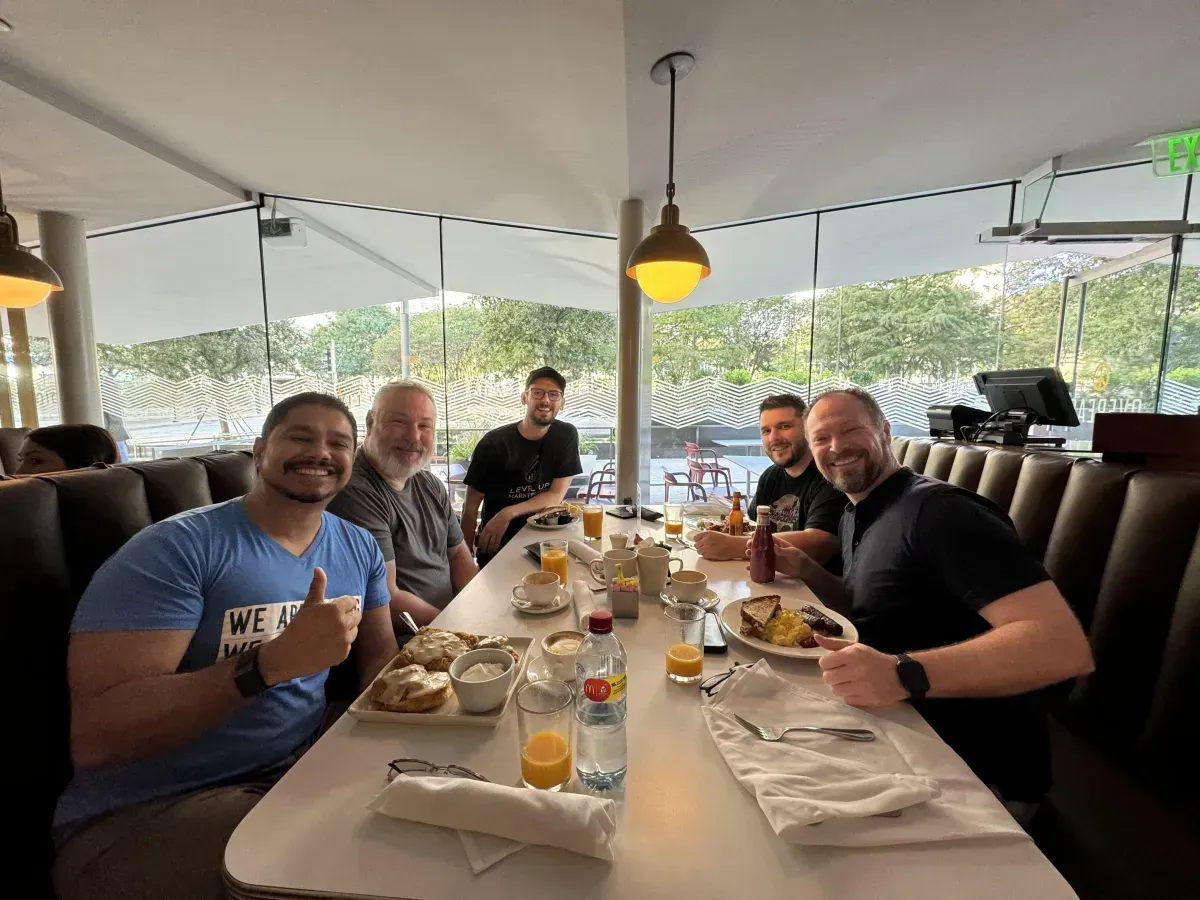
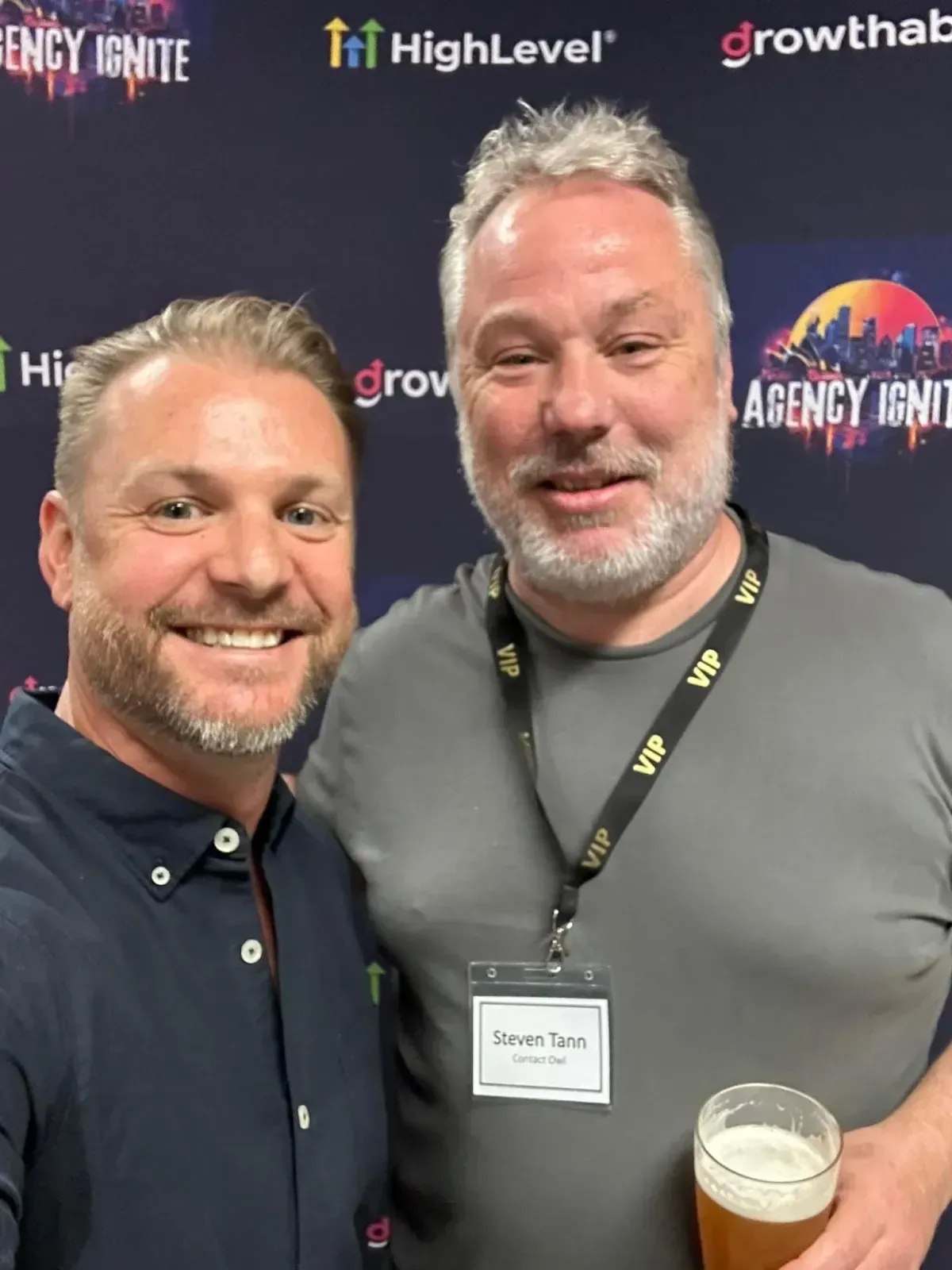
Our Tribe




Blogs

Mastering WhatsApp Like a Pro: How to Use (and Outsmart) the System!
Mastering WhatsApp Like a Pro: How to Use (and Outsmart) the System!
WhatsApp is more than just a messaging app—it’s a game-changing tool for business communication, automation, and lead generation. But with strict policies against bulk messaging and automation, navigating the system can be tricky. In this guide, we’ll show you how to use WhatsApp efficiently, automate messages, capture leads, and avoid bans—all while keeping things smooth and professional. Ready to master WhatsApp like a pro? Let’s dive in! 🚀

Steven Tann

Introduction
WhatsApp isn’t just for chatting anymore. With the right setup, you can use it as a powerful automation and business tool—without relying on clunky SMS services.
But here’s the catch: WhatsApp doesn’t like automated systems. It has a strict policy against bots and bulk messaging. So how do you maximize WhatsApp’s potential while avoiding bans?
That’s exactly what we’re going to show you! In this guide, you’ll learn how to:
✅ Send WhatsApp messages automatically (without setting off red flags)
✅ Chat directly from your CRM
✅ Capture leads through WhatsApp
✅ Avoid getting blocked (and recover fast if you do!)
1. Getting Started: Linking Your WhatsApp Number
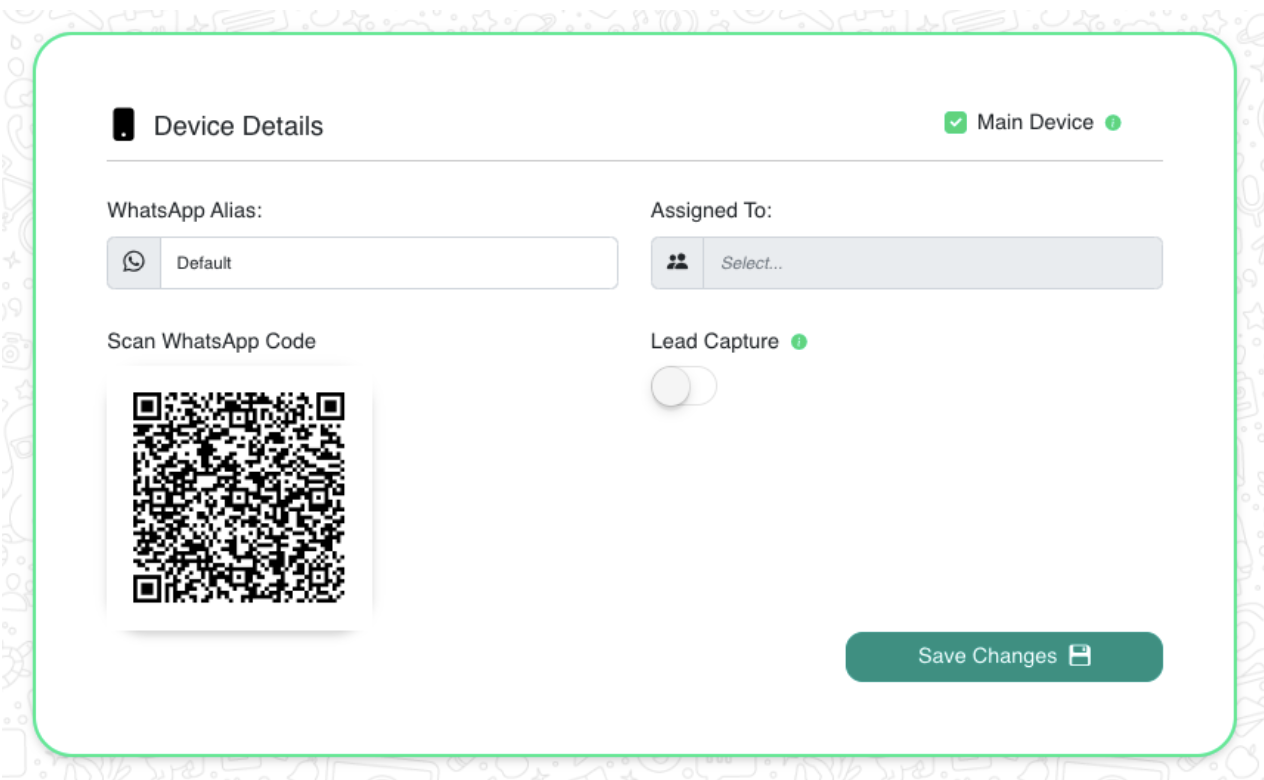
To begin using WhatsApp within your system, you’ll first need to link your phone number to AppLevel.
Steps to Link Your WhatsApp Number:
Open your AppLevel link and click on the WhatsApp symbol.
Click on "Scan Code"—this will generate a QR code.
On your physical phone, open WhatsApp.
Go to Settings → Linked Devices → Tap "Link a new device".
Scan the QR code from your screen.
Once done, your phone is linked! Click "Save Changes."
🚀 Pro Tip: This process allows WhatsApp to function within your CRM. If you change devices, simply unlink and repeat these steps.
2. Workflows: Automating WhatsApp Messages
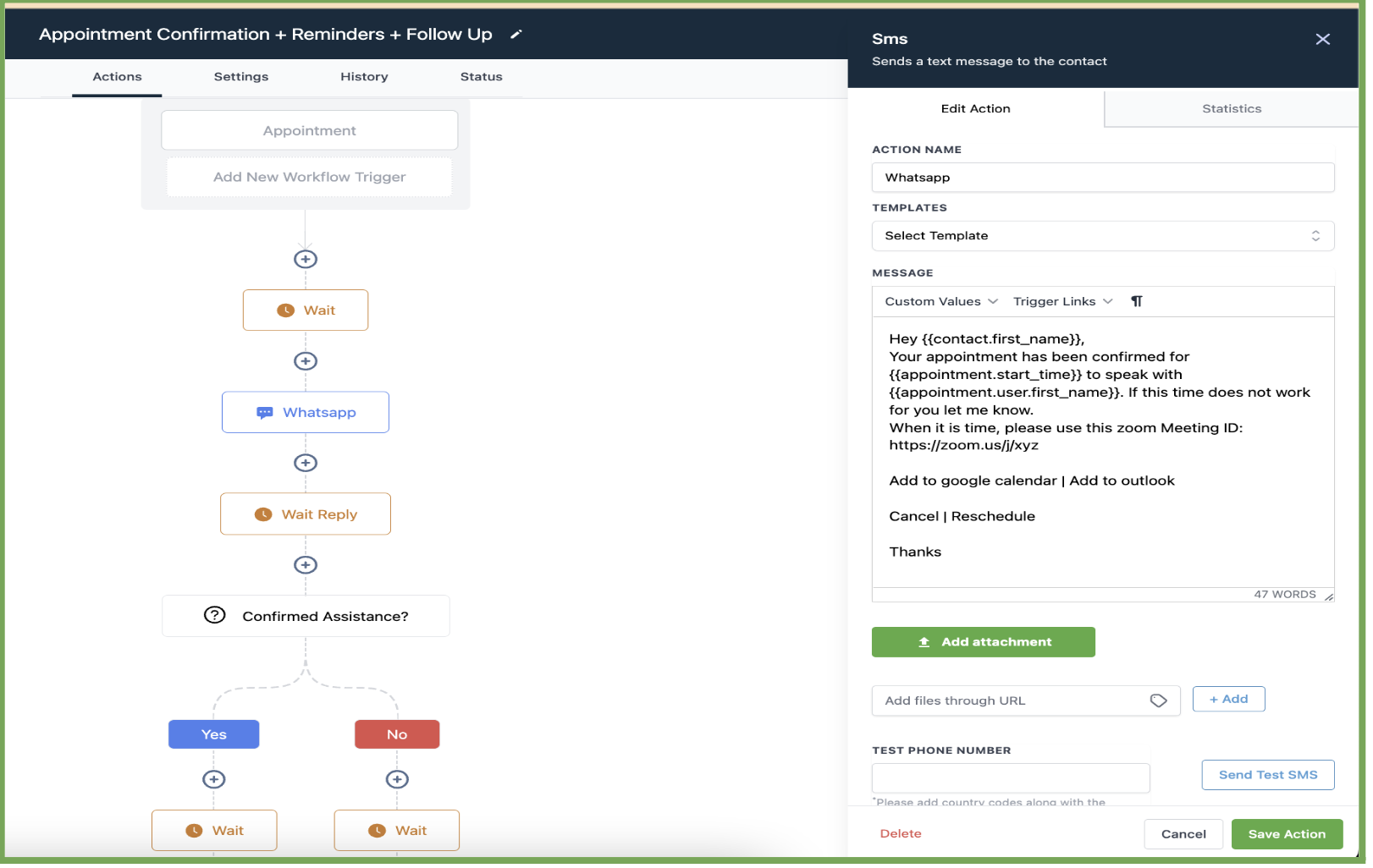
If you’re using workflows, you’ll be happy to know that WhatsApp can replace your SMS messages automatically.
How it Works:
Any SMS event you already have in your workflow will now send through WhatsApp instead.
Want to add a new WhatsApp message to a workflow? Just insert an SMS event—it will send via WhatsApp.
For better organization, rename the event to "WhatsApp" so it’s clear in your workflow.
✅ No extra setup is needed! WhatsApp takes over as soon as your number is linked.
3. Live Chat: Messaging from the Conversations Tab
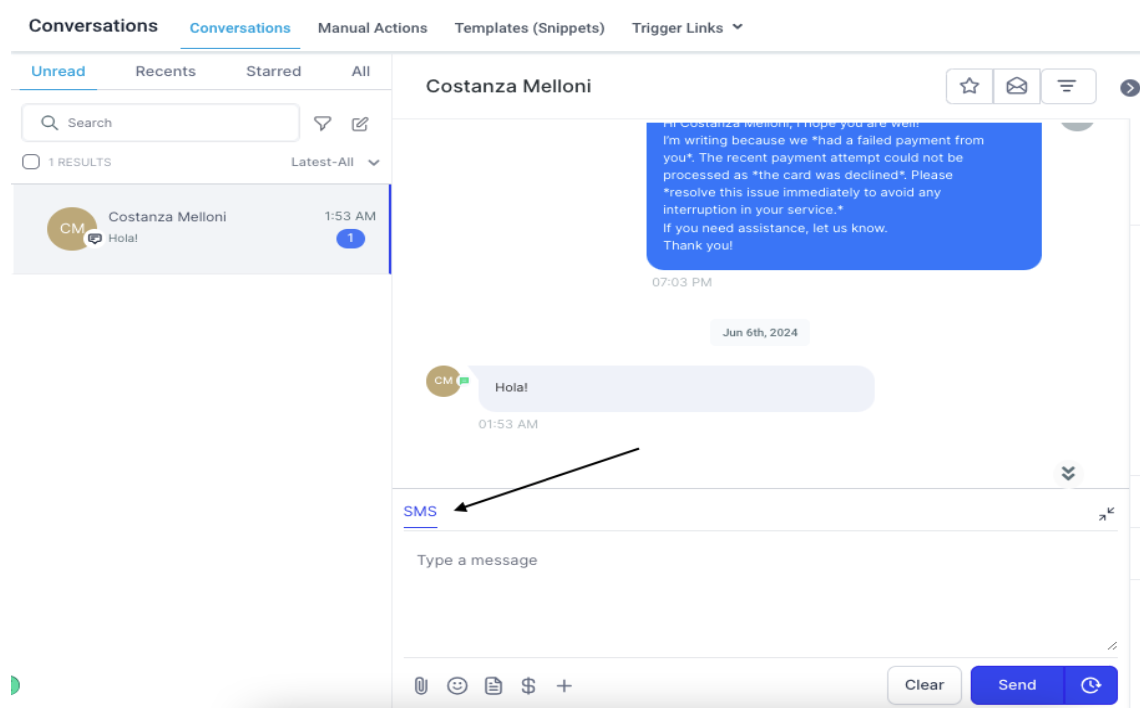
Want to chat directly with customers from your CRM? You can do that inside the Conversations Tab!
Steps to Chat via WhatsApp in CRM:
Open GHL’s Conversations Tab.
Select the contact you want to message.
Click “SMS” (even though it’s actually sending a WhatsApp message).
💡 Why Click ‘SMS’ Instead of ‘WhatsApp’?
Even though you’re sending messages via WhatsApp, the system treats them like SMS. That’s why you need to select SMS to send WhatsApp messages.
4. Lead Capture: Getting Messages from Unknown Numbers
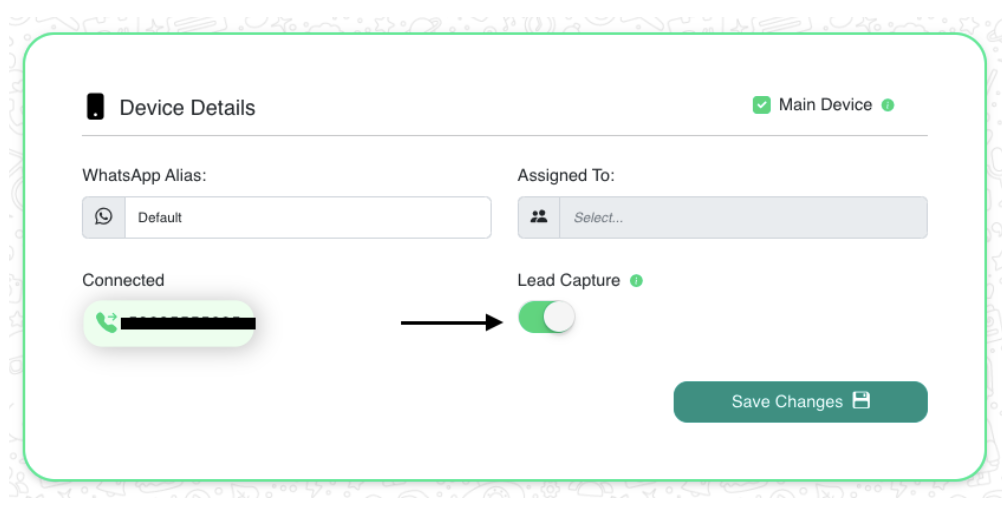
Normally, WhatsApp only shows messages from saved contacts inside GHL. But what about new leads?
How to Enable WhatsApp Lead Capture:
Open your AppLevel link.
Click the WhatsApp icon.
Tap "Lead Capture" to enable it.
Hit "Save Changes."
Now, any new WhatsApp message from an unknown number will show up inside GHL. No more missing potential leads!
5. Staying Notified: Avoiding Disconnections & Setting Up Email
What if your WhatsApp disconnects? You don’t want to miss messages just because your number got unlinked.
How to Get Notified When WhatsApp Disconnects:
Click the settings wheel in AppLevel.
Go to "Notification Settings."
Add email recipients who should receive alerts.
(Optional) Set up your own Mailgun for notifications.
By default, AppLevel sends email alerts if WhatsApp disconnects. But if you prefer, you can use your own Mailgun setup for extra control.
6. The BIG Risk: Avoiding a WhatsApp Ban
🚨 WhatsApp DOES NOT like bulk messaging!
If WhatsApp thinks you’re a bot or spammer, they will ban your number—sometimes permanently.
Common Reasons WhatsApp Bans Numbers:
❌ Sending too many messages too quickly.
❌ Getting reported by users.
❌ Messaging people who haven’t opted in.
❌ Violating Meta’s policies.
How to Stay Safe & Avoid Bans:
✅ Use "Drip Mode" (send only 5-8 messages per minute).
✅ Don’t spam or send bulk messages in short periods.
✅ Link multiple numbers to spread out messages.
✅ Warm up new numbers by chatting manually first.
7. Recovering a Blocked Number (If You Pushed Too Hard!)
Did WhatsApp block your number? Don’t panic! You can often recover it in under 24 hours.
Steps to Request a Review:
Open WhatsApp on the banned number.
Click “Request Review.”
Explain why your number is important for your business.
Create urgency in your request.
Wait for WhatsApp’s response.
🚀 Pro Tip: Keep messages personalized and valuable to lower the risk of getting banned again.
8. Bonus Tips & Tricks: How to Maximize WhatsApp Efficiency
✨ Personalize Messages – Use customer names and relevant details.
✨ Schedule Messages – Spread out your messages to avoid looking like a bot.
✨ Engage with Responses – Reply to customers so you don’t look automated.
✨ Use Multiple Numbers – Divide messages across different WhatsApp accounts.
✨ Monitor Message Status – If too many messages go unread, WhatsApp may flag you.
FAQ – Frequently Asked Questions
Q: Can I send unlimited messages?
Yes, but you need to space them out properly to avoid being flagged as spam.
Q: Can I use virtual numbers for WhatsApp?
No, WhatsApp prefers physical phone numbers. Virtual numbers can get banned easily.
Q: What happens if my WhatsApp disconnects?
You’ll receive an email notification if notifications are enabled. Just re-link your device to continue.
Q: How do I send voice messages automatically?
You can pre-record voice messages, upload them to GHL, and send them via workflows.
Q: Can I integrate WhatsApp with Facebook Ads?
Yes! Messages from Facebook Ads can be captured and displayed inside GHL.
Conclusion: Become a WhatsApp Pro!
By following this guide, you can:
✔ Automate messages without raising red flags
✔ Capture new leads directly from WhatsApp
✔ Stay compliant and avoid bans
✔ Recover blocked numbers fast if needed
So go ahead—start messaging like a pro and outsmart the system! 🚀


Submit a Request
Ready to elevate your marketing? Fill out the form below, and our team will craft a solution for your needs.

Subscribe to our social


