
Setting Up Our Team Access on Your Facebook Page
Its quick and easy, just follow the step by step instructions below...
Android Setup Instructions
Step One
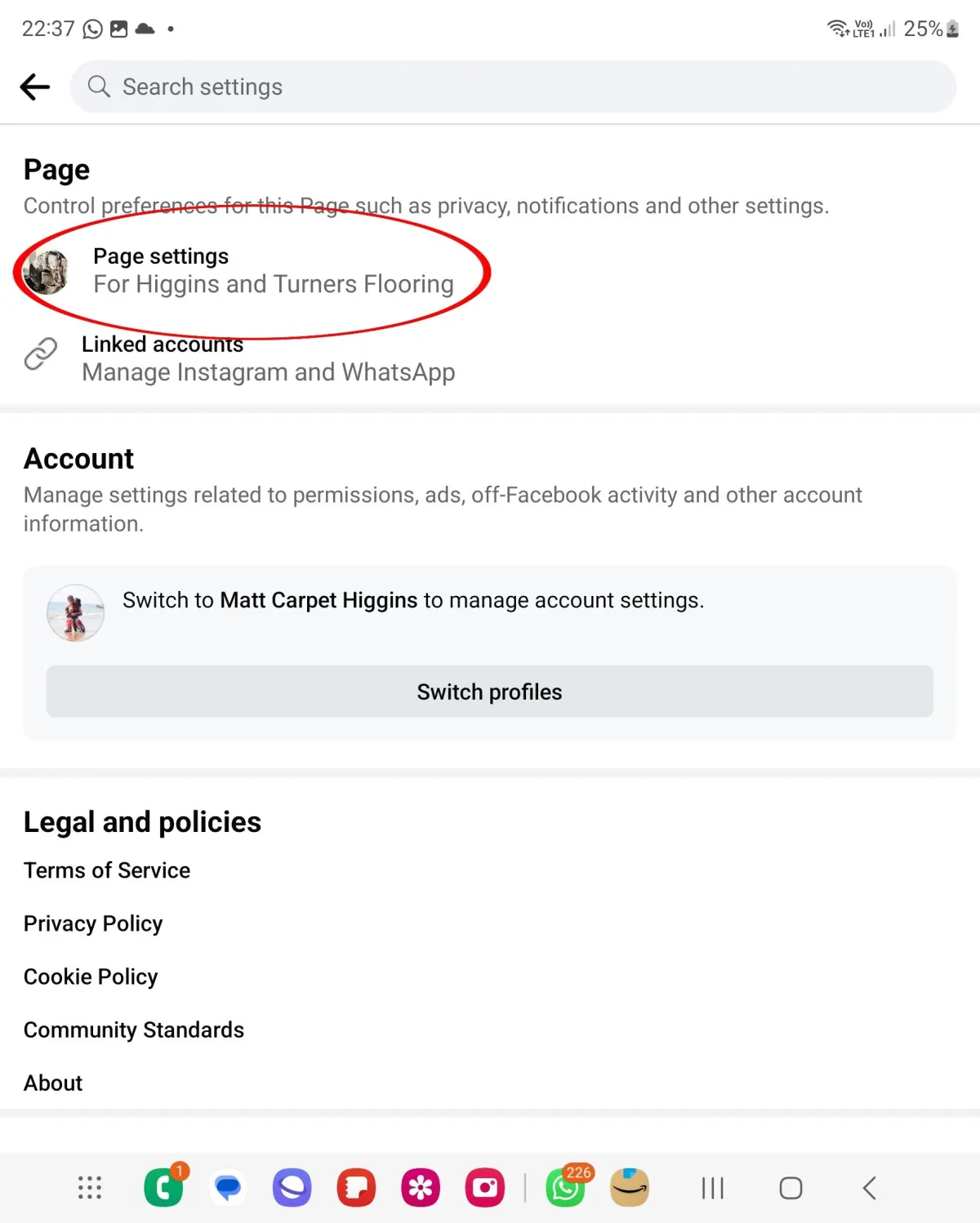
Step Two
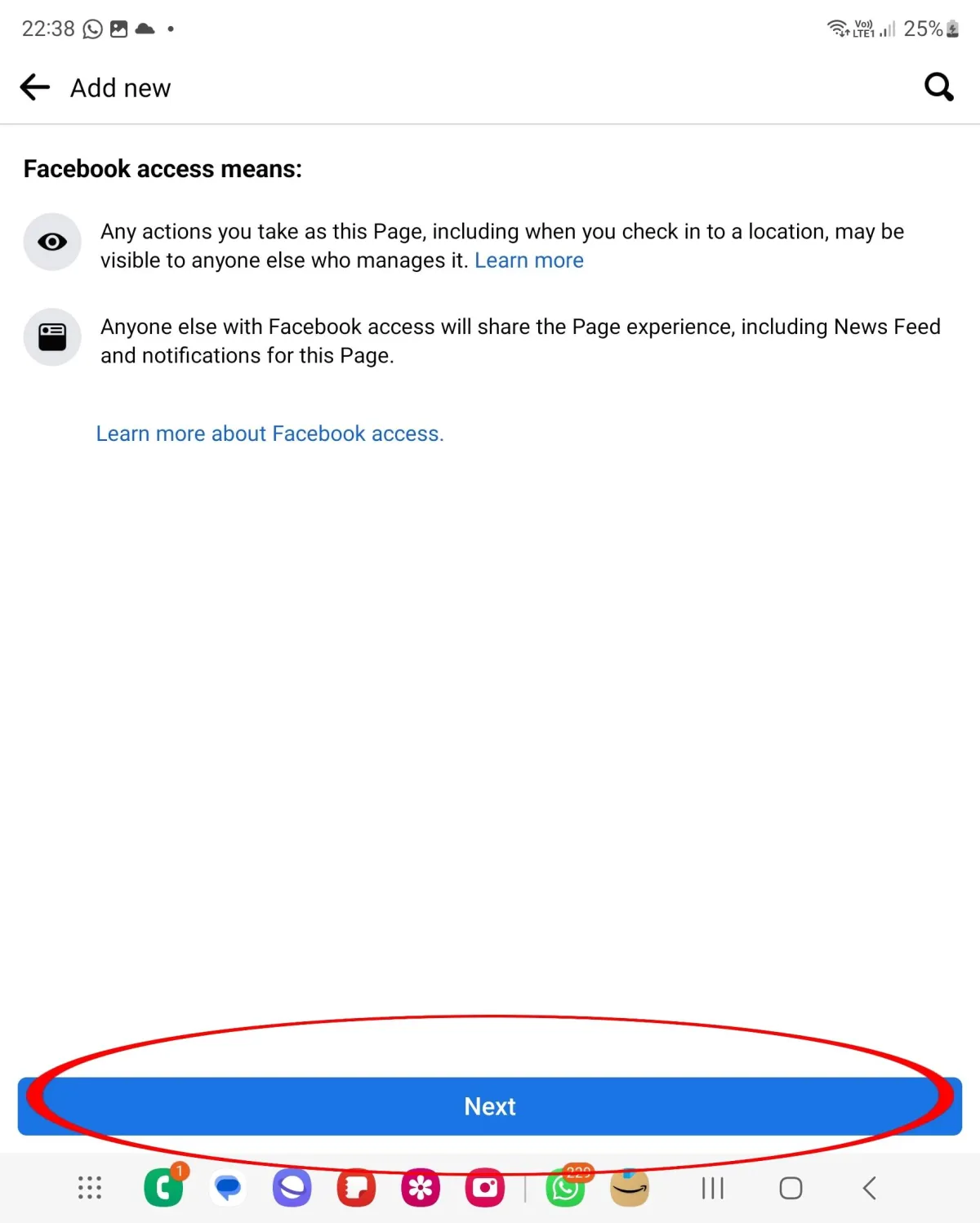
Step Three
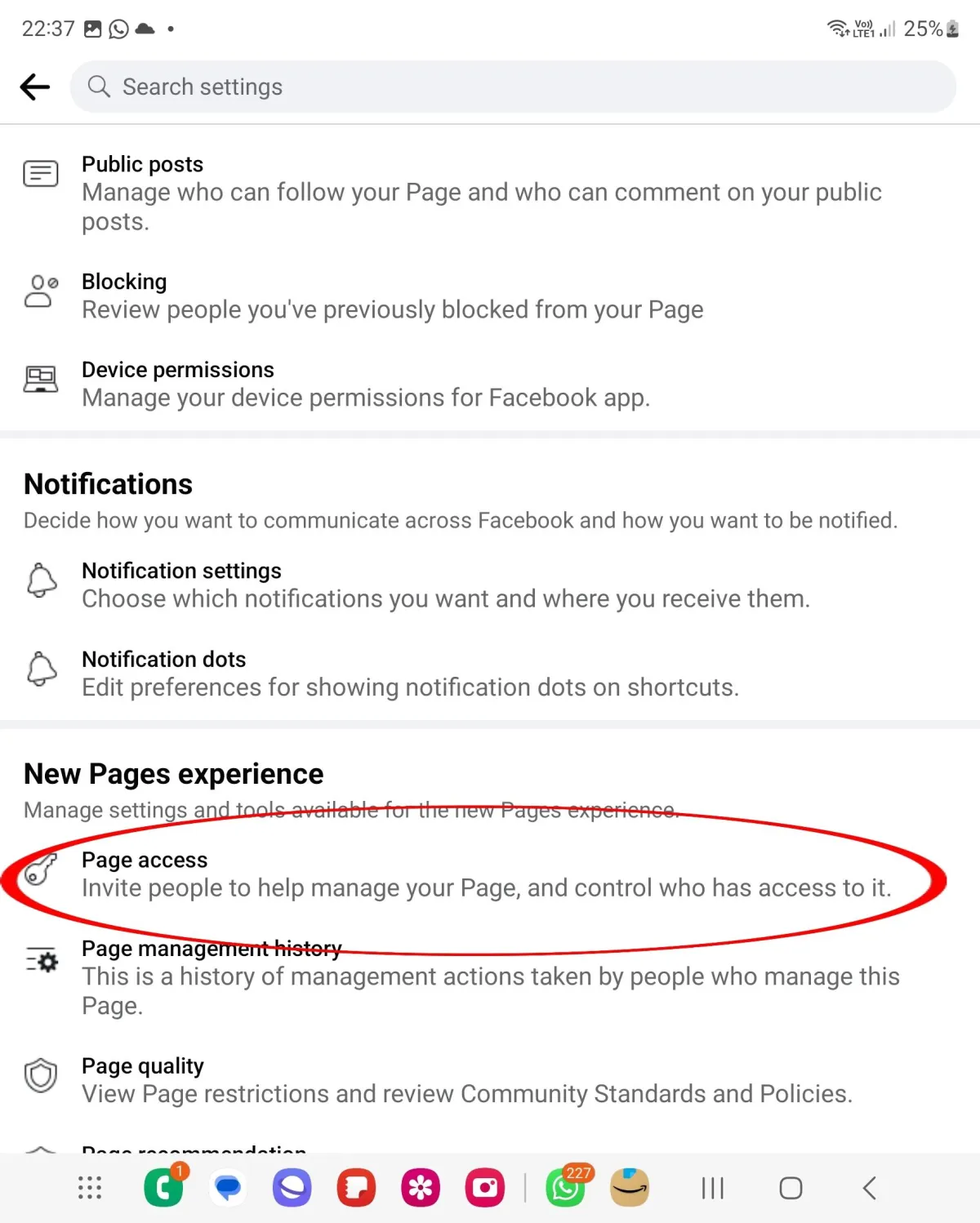
Step Four
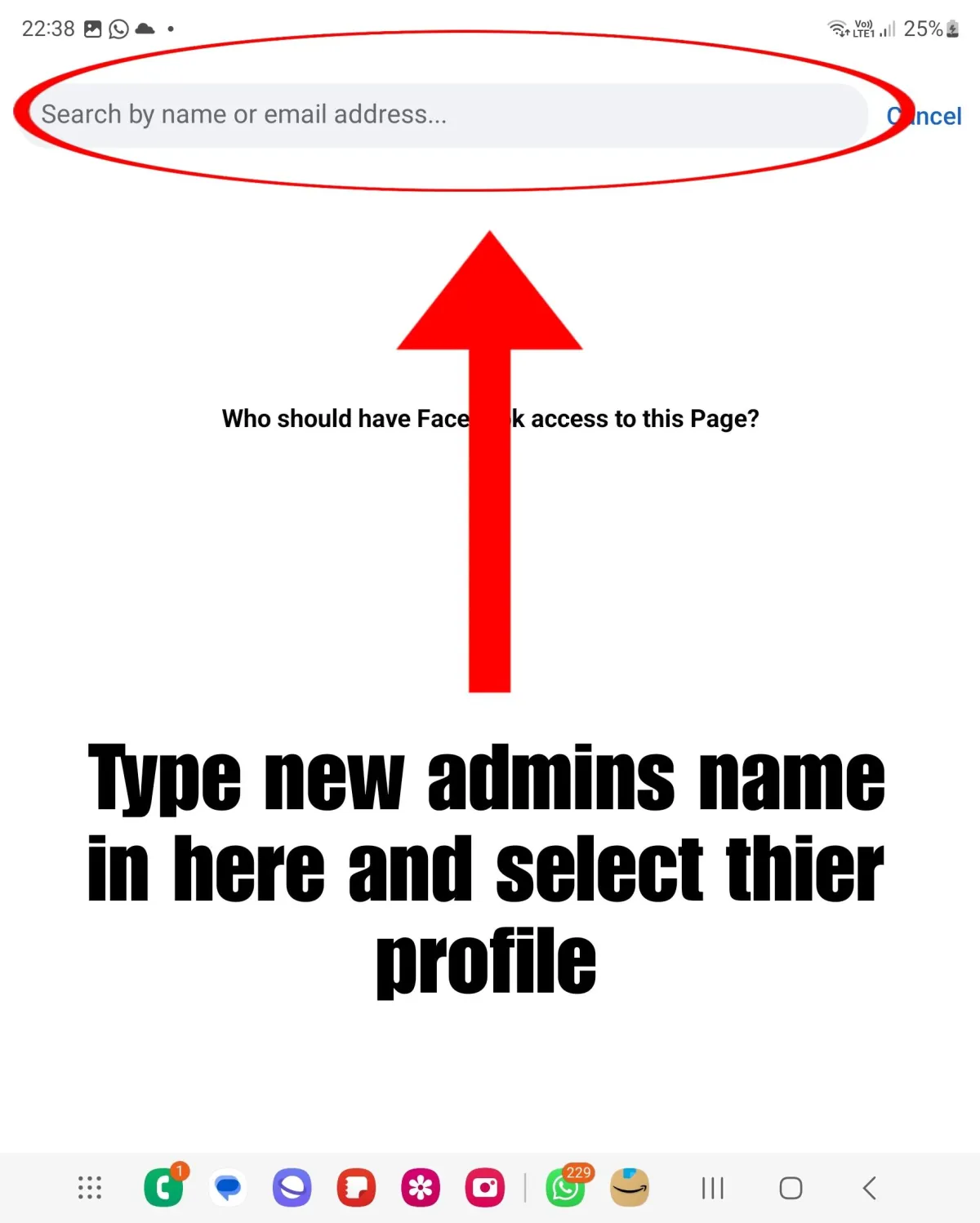
Step Five
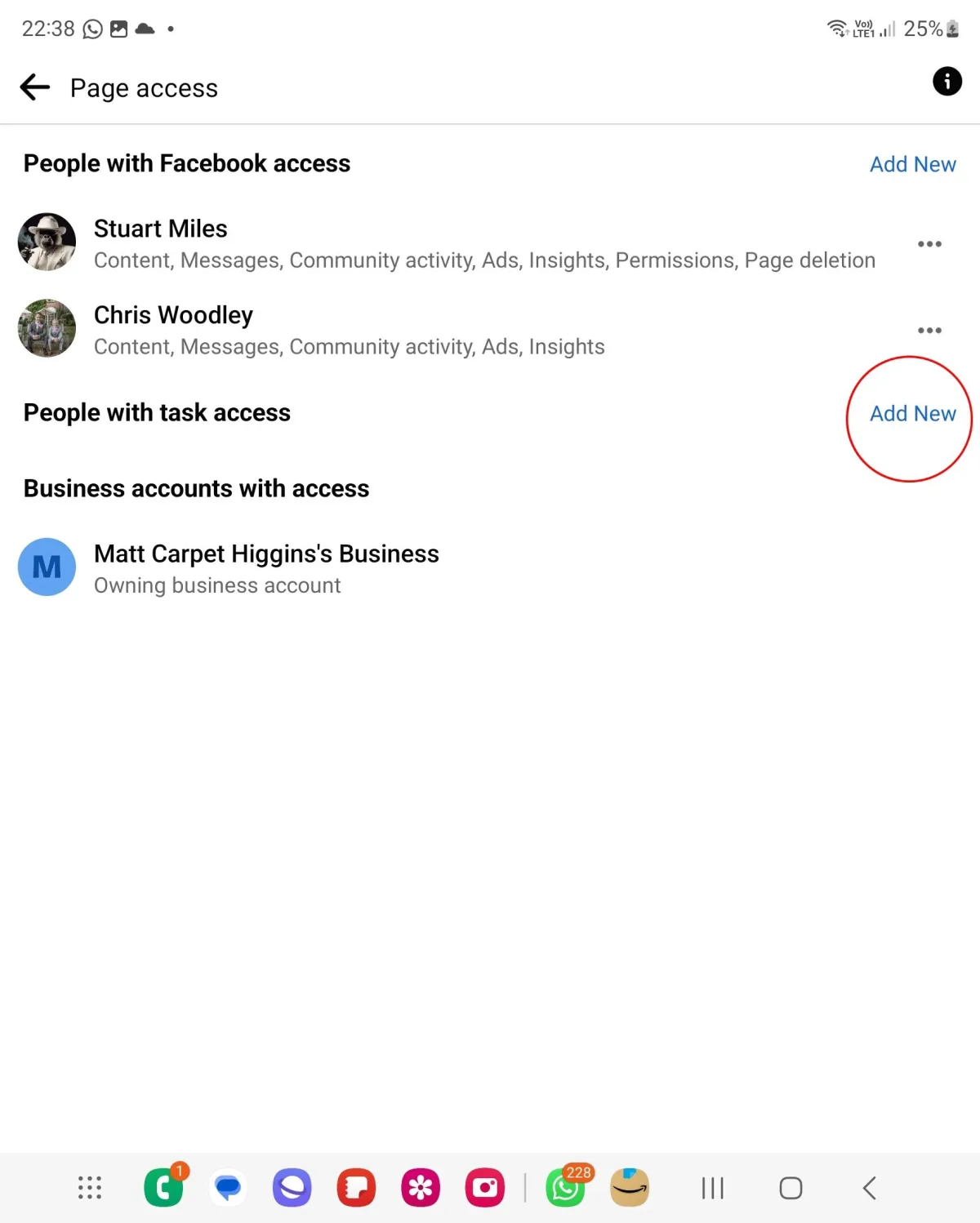
Step Six
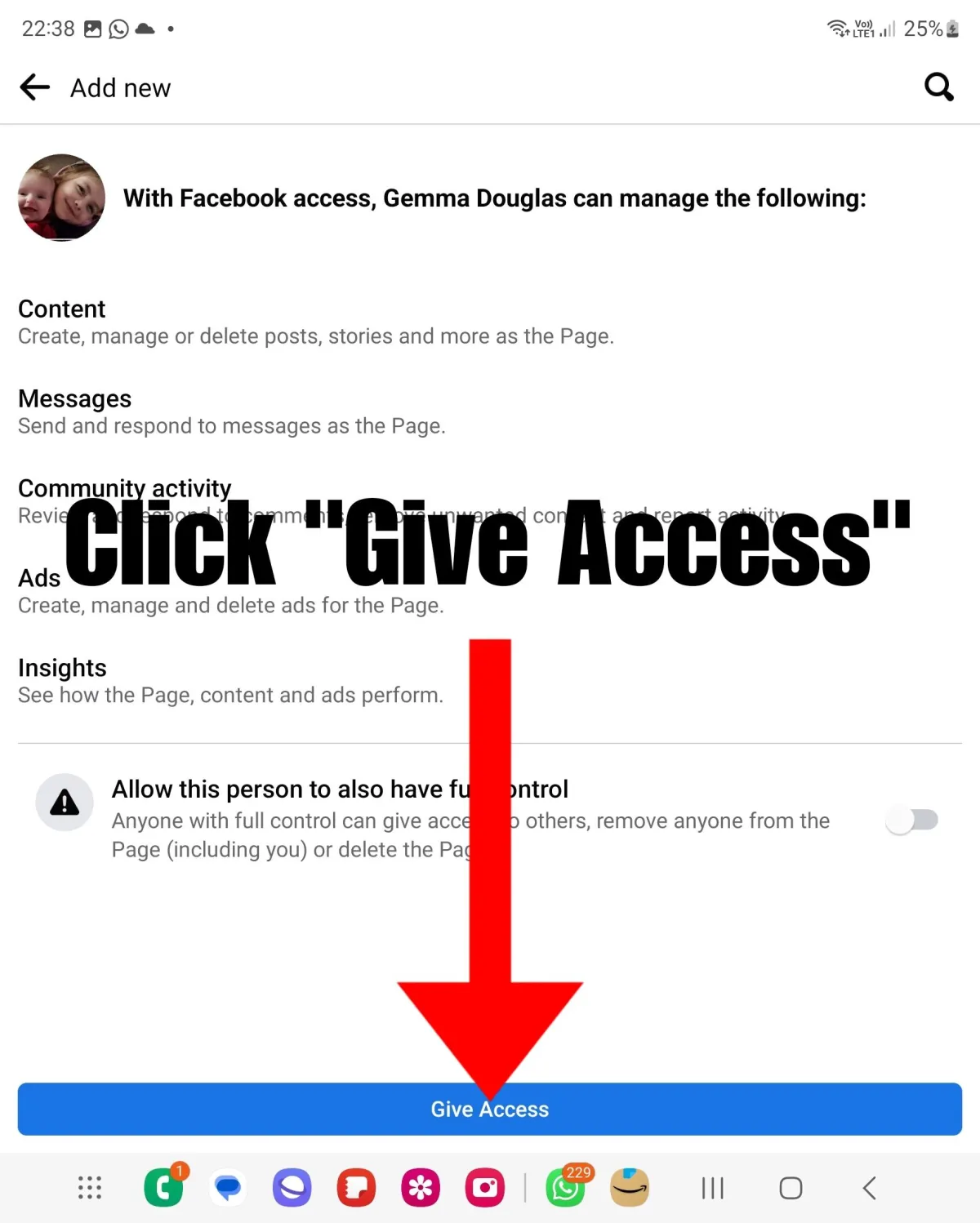
iPhone Setup Instructions
Step One
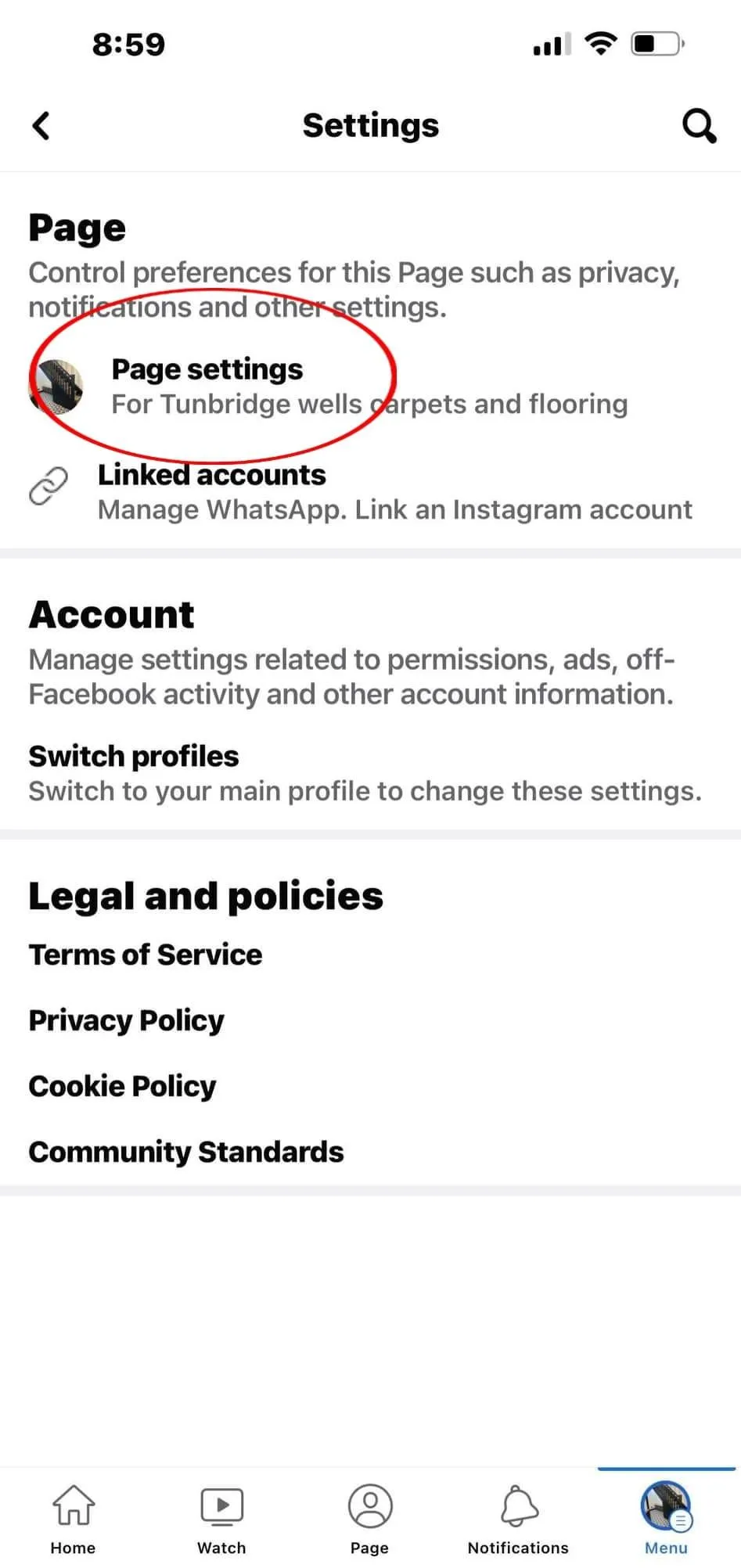
Step Two
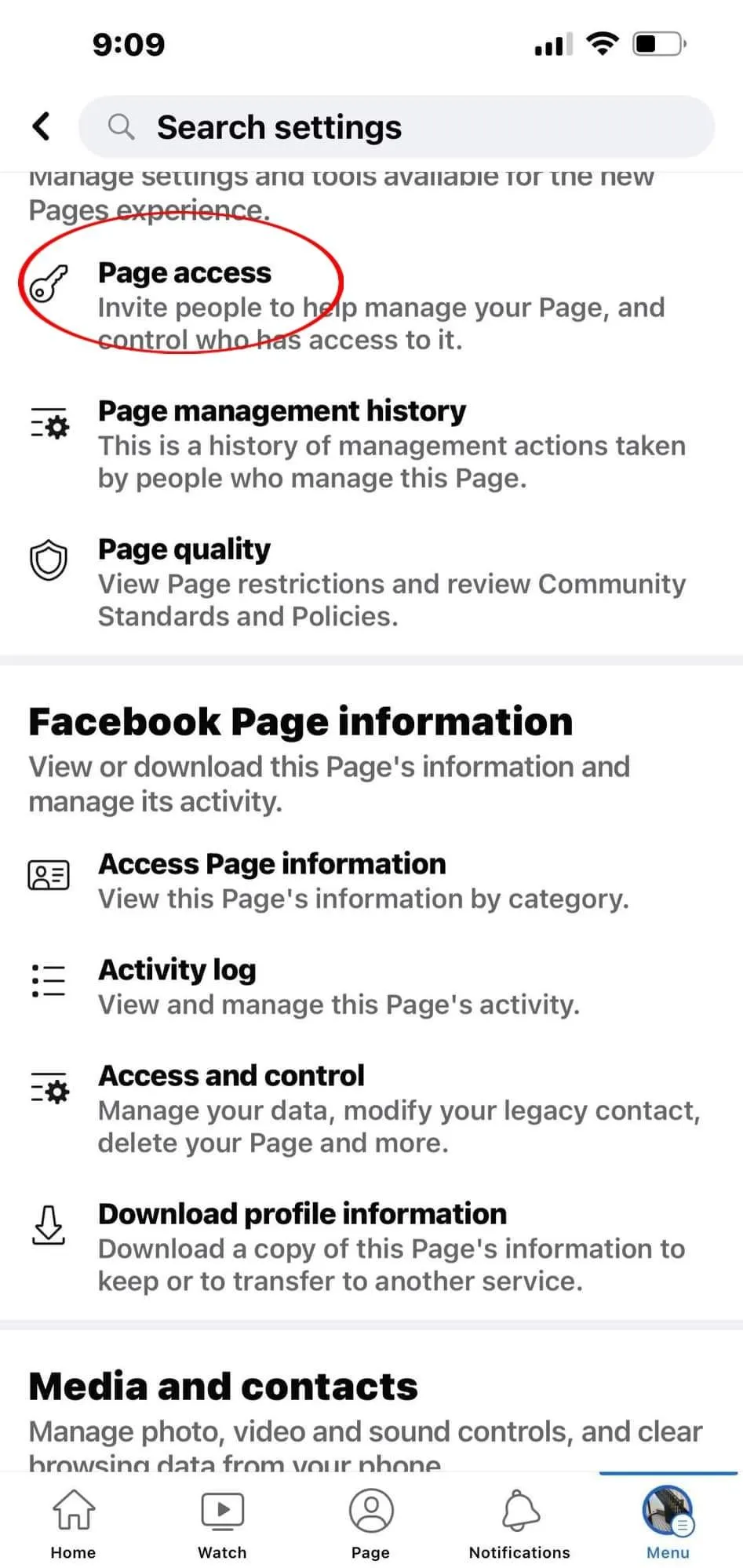
Step Three
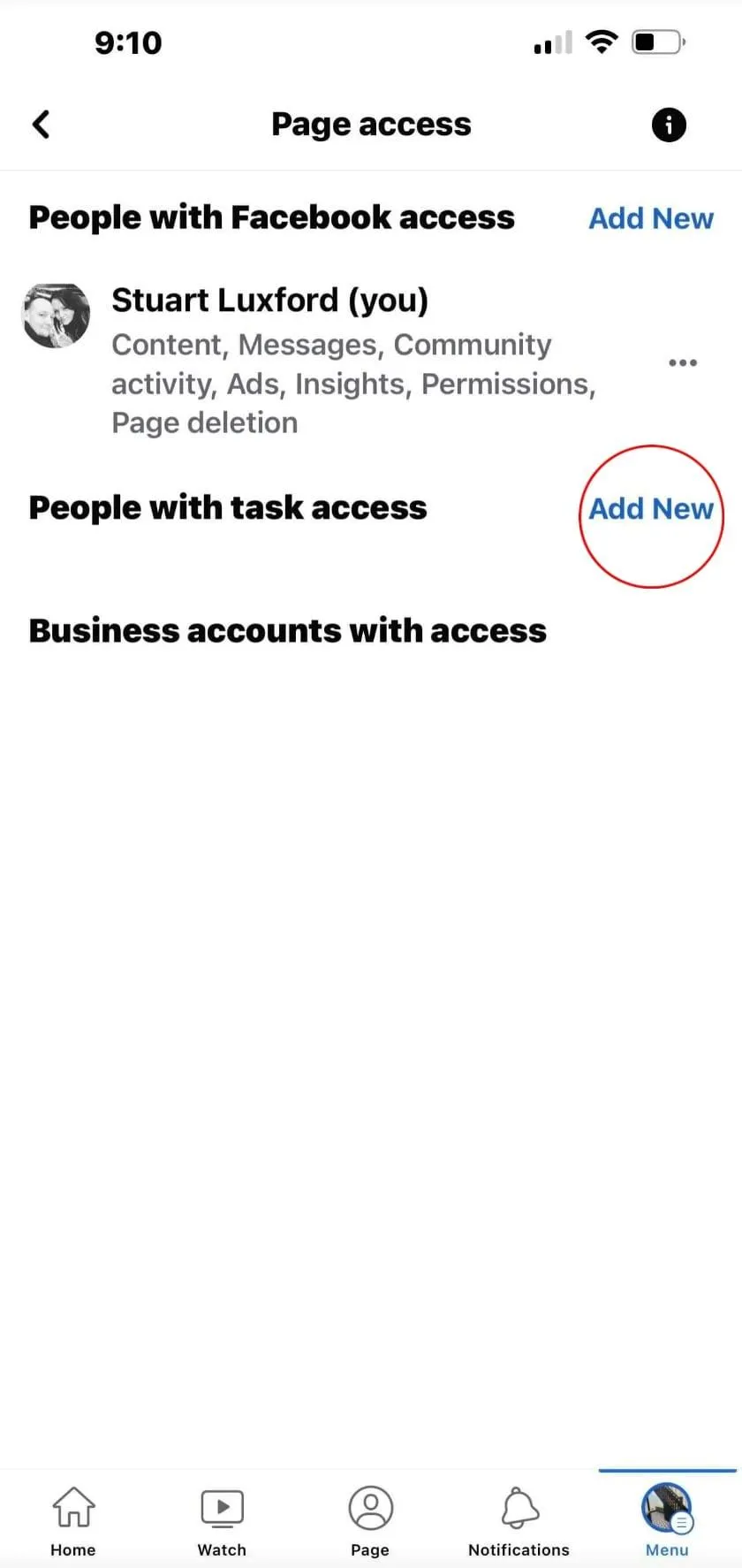
Step Four
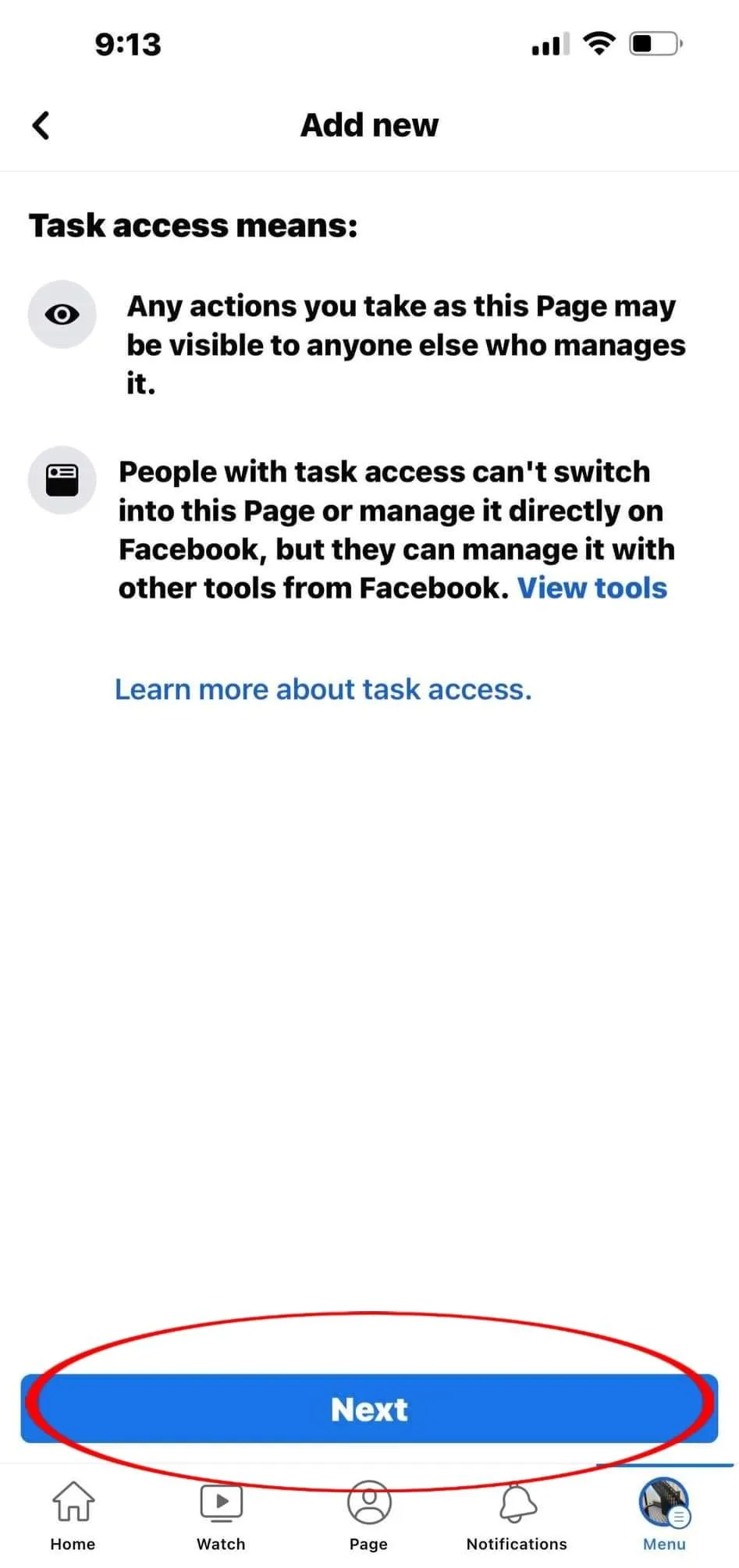
Step Five
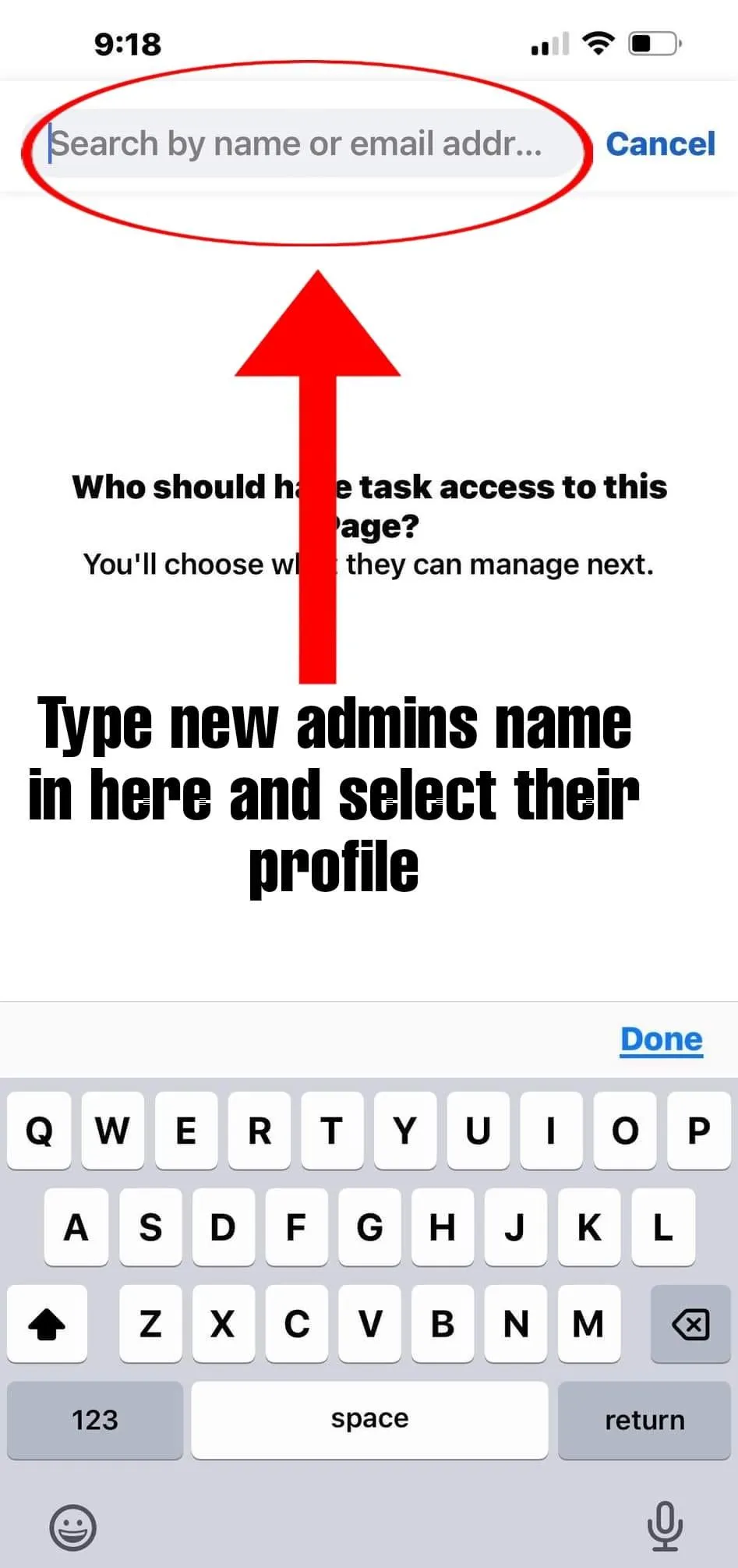
Step Six
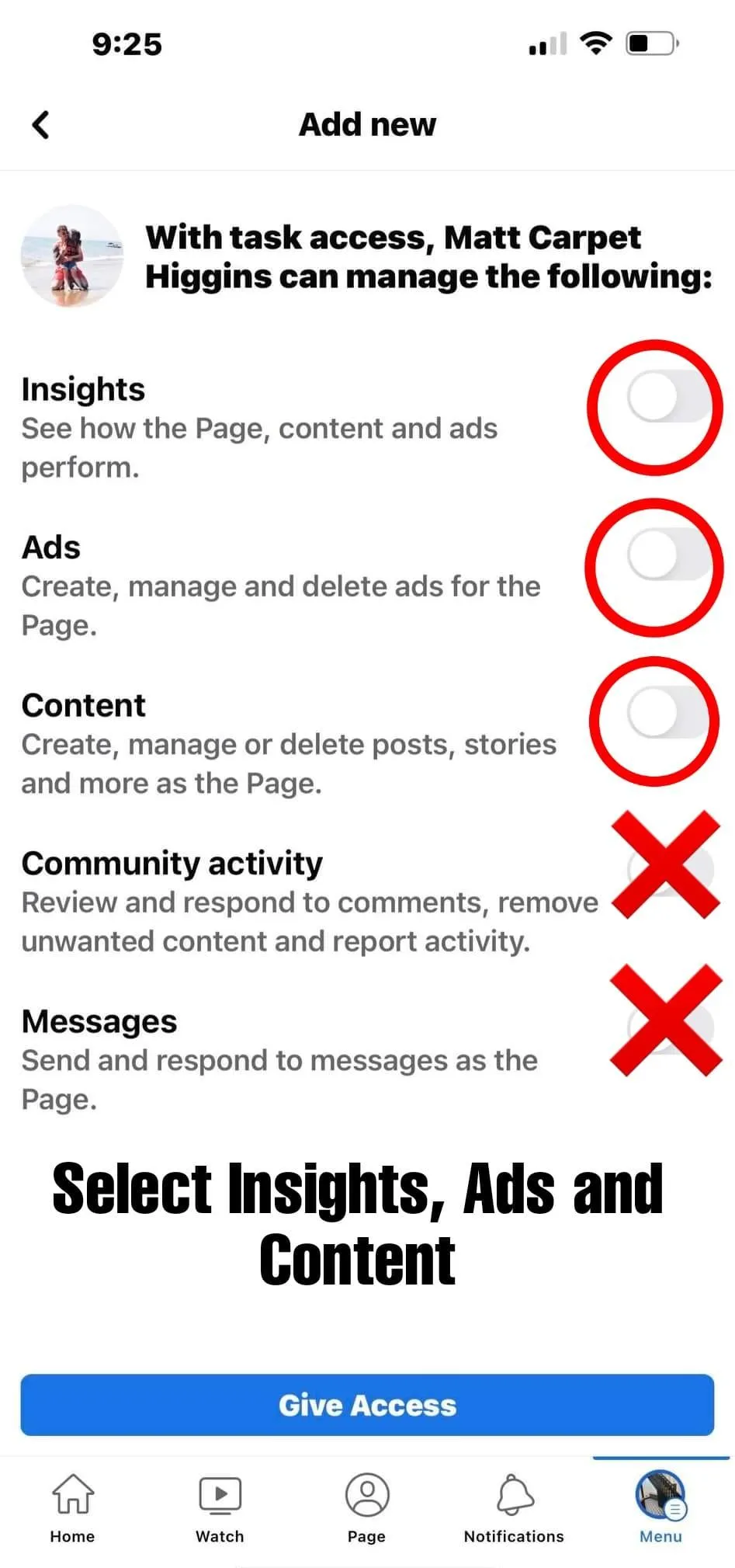
PC Setup Instructions
Make Someone an Admin on Your Facebook Page From Desktop
Step One
To perform the process on your Windows, Mac, Linux, or Chromebook computer, first, launch a web browser on your computer and access the Facebook site. Then go to the page to which you want to add an admin. On the page screen, from the left sidebar, select “Settings.”

Step Two
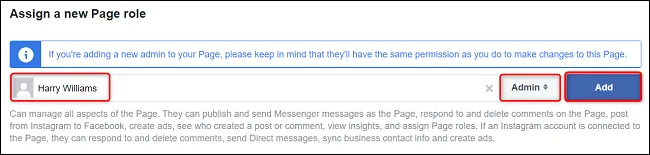
Again, in the left sidebar, click “Page Roles.”You’ll see an “Assign a New Page Role” section on the right.

Step Three
Here, click the text field and type the name or email address of the user you want to make an admin.Then click the drop-down menu and choose the “Admin” option.Your chosen user will receive an invitation to become an admin on your page. Once they accept it, they are one of the admins for the page.
LinkedIn Setup Instructions
Making someone an admin on your LinkedIn page
Making someone an admin on your LinkedIn page and assigning them the role of a manager is not a difficult process. Here are the steps to follow:
1. Log in to your LinkedIn account and navigate to your company page.
2. Click on the "Admin tools" dropdown menu and select "Page admins."
3. Click on the "Invite" button and enter the email address of the person you want to make an admin.
4. Select the role you want to assign to them (e.g., manager, content manager, analyst).
5. Click on "Send invitation."
Once you've sent the invitation, the person will receive an email with instructions on how to accept the invitation and become an admin on your LinkedIn page.
Follow us on
social media!
Want to follow us on Facebook and Instagram?
Click on the links to follow our journey!